 Sign in
Linux Server vs Desktop: What Is Different and Which to Install
A Linux server and a Linux desktop usually share the same kernel and packages; the difference is what gets installed on top and how the system is meant to be used. This guide explains those differences in plain terms and helps you decide what to run on your own machine and on a Linux VPS.
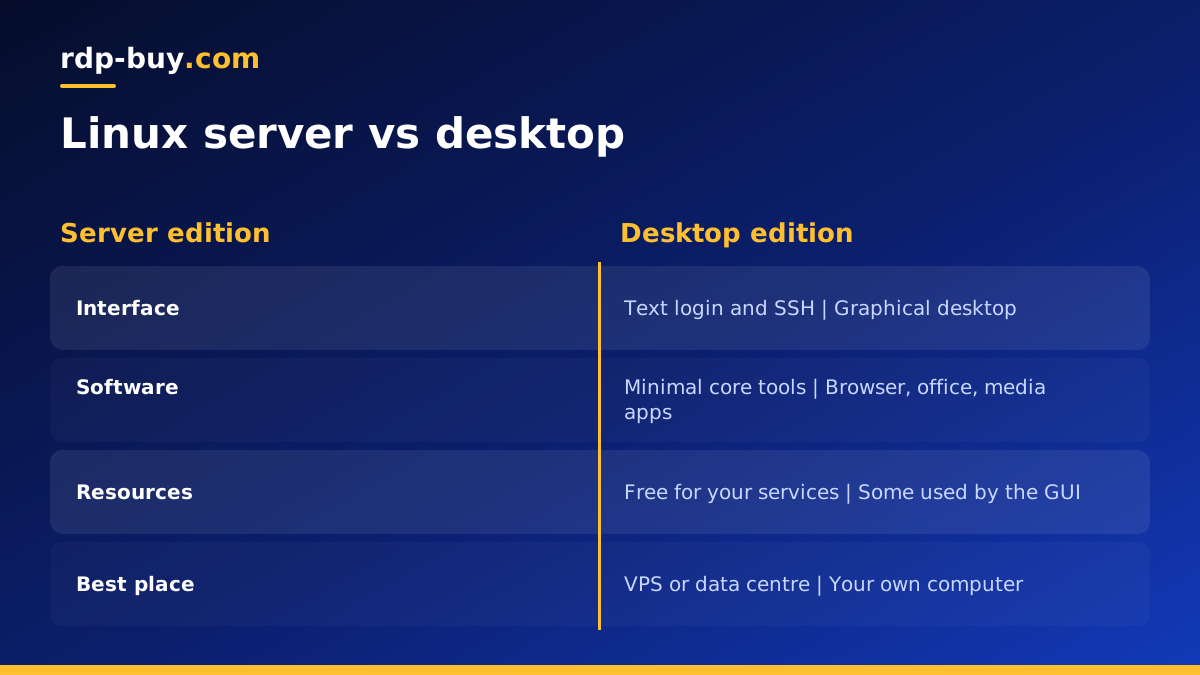
Same core, different purpose
Distros such as Ubuntu, Debian and Fedora offer both a server and a desktop flavour. Underneath, both use the same Linux kernel, the same package manager and the same software repositories. You could install a desktop on a server edition, or strip a desktop edition down to work as a server. What really separates them is the default selection of software and the assumptions the installer makes about how you will use the machine.
A desktop edition assumes a person sits in front of a screen. It installs a graphical environment such as GNOME or KDE, a web browser, office and media apps, and services that manage Wi-Fi, Bluetooth, printers and sound. A server edition assumes nobody is sitting in front of it. It installs a minimal system that you manage remotely over SSH, and leaves memory and CPU free for the services you actually want to run.
The main differences at a glance
Here are the practical differences you will notice between a typical server install and a typical desktop install:
- Interface: desktops boot into a graphical session. Servers boot to a text login and are usually managed over SSH.
- Installed software: desktops include browsers, office suites and media players. Servers include almost nothing beyond core tools and an SSH server.
- Resource use: a graphical session uses a noticeable amount of memory even when idle. A headless server leaves that memory for your applications.
- Networking: desktops use NetworkManager with Wi-Fi and roaming in mind. Servers usually use static or simple wired configuration, such as netplan on Ubuntu Server.
- Updates: desktops show update prompts. Servers are typically set up for unattended security updates and planned maintenance.
- Security surface: fewer packages on a server means fewer things to patch and fewer ways in.
Why servers run headless
Running without a graphical interface is called running headless. It is the normal way to operate a Linux server for three reasons.
First, efficiency. Every megabyte the desktop uses is a megabyte your database, web server or AI agent cannot. On a small VPS this makes a real difference. Second, security. A desktop environment brings in many libraries and background services, and each is something that might need a security fix. Third, remote management is simply easier over SSH. Commands can be scripted, logged and repeated, and they work over slow connections where a remote desktop would struggle.
Most server software is designed with this in mind. Web servers, databases, Docker, n8n, and AI agents such as Claude Code (by Anthropic) all run from the command line or as background services, and many offer a web interface that you open in your own browser rather than on the server.
When a desktop on a server makes sense
There are good reasons to want a graphical session on a remote machine. Some trading platforms, browser automation tasks, design tools and legacy apps need a real desktop. Some people simply prefer to click rather than type. In these cases you have two options.
On Linux, you can install a lightweight desktop such as XFCE and connect with an RDP client through xrdp. Our guide to the RDP server for Linux with xrdp walks through the setup. Keep the desktop light and make sure the server has enough memory for both the desktop and your apps.
If the software you need runs only on Windows, a Windows server with Remote Desktop is the cleaner route. A Windows RDP plan gives you a full Windows desktop in the cloud, with the licence included in the price.
Can you run a desktop edition as a server?
Yes, and many home labs do exactly that with an old laptop or PC. You install the desktop edition, add an SSH server and the services you want, and leave it running. It works, but there are trade-offs. The graphical session uses resources even when nobody is logged in. Power settings may put the machine to sleep. Wi-Fi drops cause outages. And home internet connections often change IP address and limit upload speed, which matters as soon as other people or services need to reach your machine.
For learning and personal projects at home, a desktop edition doing server work is fine. For anything that other people, customers or automations depend on, a server edition on dedicated hosting is more reliable.
Which should you install?
Use this simple guide to decide which edition fits your situation:
- Your everyday computer: desktop edition.
- A VPS or cloud server: server edition, managed over SSH.
- A home lab box for learning: either, but the server edition teaches real server habits.
- An always-on AI agent, n8n or Docker host: server edition on a VPS. See our AI agent hosting hub.
- A remote desktop for apps that need a screen: server edition plus a light desktop and xrdp, or a Windows RDP server.
- Developing on a server from your laptop: server edition on the VPS, with your editor connecting over SSH.
Turning a server install into a working system
New users sometimes worry that a server edition is bare and hard to use. In practice, a few commands turn it into a capable machine. After your first login, update packages, create a normal user with sudo rights, set up SSH keys, enable a firewall and turn on automatic security updates. Then install only what your project needs, such as Docker, a web server or a database.
If you have never managed a server before, our guide to what you can run on a VPS gives practical project ideas, and our article on the best Linux distro for a server helps you pick the edition to start with.
Common myths about server editions
A few misunderstandings come up often:
- Server editions are faster at everything: they are lighter, but the kernel and apps are the same. The gain comes from not running a desktop.
- You cannot add a GUI to a server: you can install any desktop environment later if you need one.
- Desktop editions are insecure: they are secure for desktop use, but they carry more software than a server needs.
- You need to memorise many commands: a small set of commands covers most daily server tasks, and documentation is everywhere.
Managing a headless server from your desktop
The best of both worlds is to keep your desktop where it belongs, on your own computer, and use it to manage a headless server. Your laptop runs the browser, editor and chat apps you like. The server runs your services around the clock. An SSH client connects the two.
Modern editors can open folders on the server over SSH, so you edit configuration files and code with full syntax highlighting while the files stay on the server. Web dashboards for tools like n8n, Portainer or monitoring apps open in your local browser. File transfers use SFTP or rsync. This split keeps the server lean and secure, while you keep the comfort of a graphical desktop for daily work.
Getting a Linux server that is always on
If you are ready to move from a desktop at home to a proper server, a VPS is the simplest step. You get a server edition installed in a data centre, reachable from anywhere, without hardware to maintain. rdp-buy.com offers Linux servers in 33 locations with full root access, a dedicated IPv4 address and 24/7 support, ready in minutes, with monthly, half-yearly or yearly billing.
Compare our VPS hosting plans and choose the edition and location that fit your project. If you are unsure whether you need Linux or Windows, read our guide on which server to rent first.
