 Sign in
RDP Best Practices: A Security and Setup Checklist for 2026
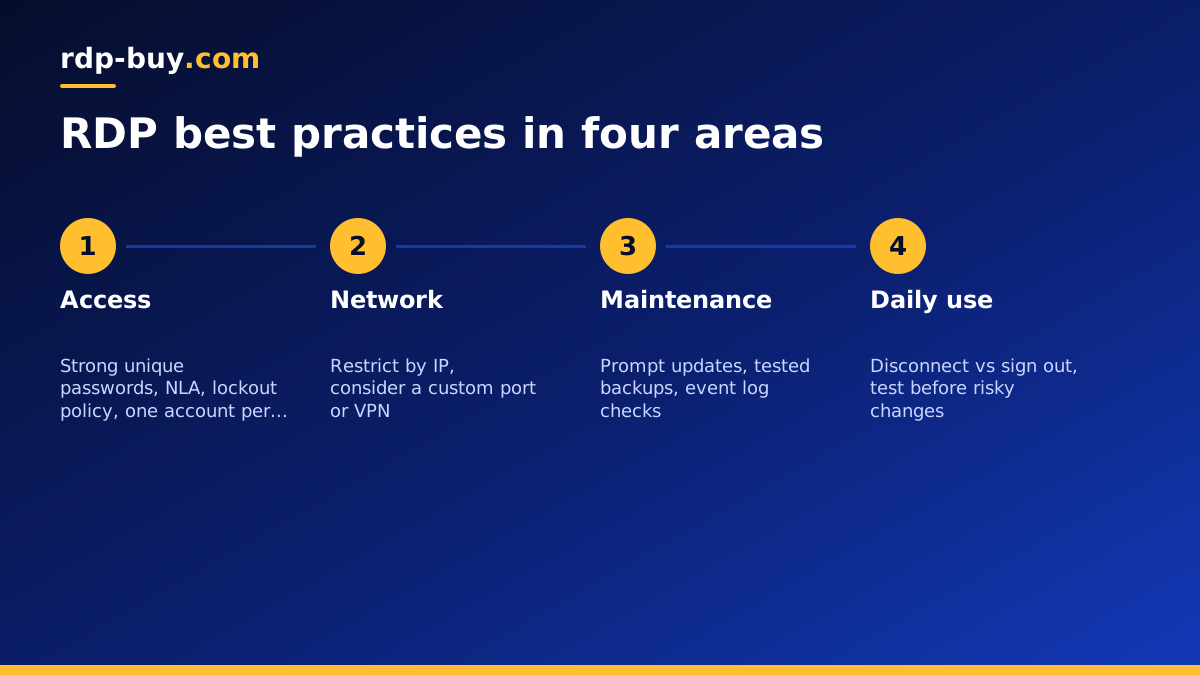
Good RDP practice comes down to a few habits: strong unique logins, Network Level Authentication, a tight firewall, prompt updates, separate accounts and regular backups. This checklist walks through each one so your Windows RDP server stays secure and pleasant to use.
Why RDP best practices matter
Remote Desktop is one of the most useful tools in Windows, and one of the most targeted. Any server with Remote Desktop open to the internet sees automated login attempts, because attackers know that a weak password on an exposed login is an easy way in. Most incidents do not involve clever exploits; they involve a guessable password, a missed update or an account that should have been removed.
The good news is that the fixes are simple and mostly free. You do not need extra products to run a safe RDP server. You need sensible defaults, applied consistently. The checklist below is grouped into access, network, maintenance and daily use, so you can work through it in one sitting after your server is ready.
Access: protect every login
Logins are the front door, so start here.
- Change the starting password immediately. Use a long passphrase or a random password from a password manager. The guide on changing a Windows RDP password shows every method.
- Never reuse passwords. A password leaked from another site should not open your server.
- Keep Network Level Authentication on. It requires a valid sign in before Windows creates a session, which reduces load and exposure.
- Set an account lockout policy. In Local Security Policy, under Account Policies, limit repeated failed attempts so guessing slows to a crawl.
- Use one account per person. Shared logins make it impossible to remove one person cleanly or see who did what.
- Grant admin rights sparingly. Add people to the Remote Desktop Users group, and to Administrators only when they need it.
- Remove or disable unused accounts. Review the list with net user from time to time.
Network: shrink the attack surface
The fewer places that can reach your login screen, the fewer attacks it sees.
- Restrict RDP by IP address. Edit the Remote Desktop firewall rules so only your home, office or VPN addresses can connect. This single step stops the vast majority of automated attempts.
- Consider a custom port. Moving off port 3389 reduces scanner noise. It is not security on its own, but it helps. See how to change the RDP port.
- Use a VPN or SSH tunnel for sensitive work. Then RDP is not exposed to the internet at all. Our RDP vs SSH guide explains the trade offs.
- Close what you do not use. Disable services and firewall rules for software you no longer run.
- Use a dedicated IP. A dedicated IPv4 address keeps your firewall rules and allow lists predictable, and separates your server from other customers' traffic.
Maintenance: updates, backups and monitoring
A secure setup stays secure only if it is maintained.
- Install Windows updates promptly. Security fixes for Remote Desktop and related components are released regularly. Schedule a quiet time each week to install and restart.
- Keep applications updated too. Browsers, trading platforms and automation tools are just as important as Windows itself.
- Back up what matters. Copy important files, configurations and exported settings to a location outside the server. Test restoring them at least once.
- Check the event log. In Event Viewer, under Windows Logs then Security, failed logon events show whether someone is guessing passwords.
- Keep Microsoft Defender on. The built-in antivirus and firewall are a sensible baseline for most servers.
Daily use: habits that prevent problems
Some of the most useful practices are about how you work rather than what you configure.
Disconnect instead of signing out when you want programs to keep running, and sign out when you are finished with a session so nothing stays open unnecessarily. Avoid browsing unknown sites or opening email attachments on the server; treat it as a work machine, not a personal desktop. Be careful with clipboard and drive sharing on untrusted client devices, since files and copied text flow both ways.
When you make risky changes, such as editing firewall rules or network settings, keep your current session open and test a second connection before closing the first. Know where your hosting panel's console is, so you can recover if a change goes wrong. Our console vs RDP guide covers that recovery path.
Best practices for servers that run AI agents and automation
Servers that run bots, browser automation or AI agents around the clock have a few extra needs. These tools often hold API keys, logged in browser sessions and access to email or business systems, so a compromised server can do more damage than a simple desktop.
Store API keys in environment variables or a protected configuration file rather than in scripts on the desktop, and give each key only the permissions the tool needs. Run the automation under its own Windows account rather than an administrator account. Keep a record of which services the agent can reach, and review the list when you add new tools. If an agent drives a browser, use a separate browser profile for it so your own logins are not mixed in. The page on Windows RDP for AI agents covers typical setups.
Performance best practices
A secure server should also be pleasant to use. A few habits keep RDP responsive.
- Choose a location close to what matters. For trading, that is your broker; for automation, the APIs your tools call; for daily desktop use, yourself. rdp-buy.com offers 33 server locations.
- Size the plan for your workload. Windows itself needs memory, and several browsers or platforms add up quickly. The guide on which RDP plan you need helps.
- Trim startup programs. Remove things that launch automatically but are not needed.
- Adjust client display settings. On slow connections, turn off desktop background and visual effects in the client's Experience tab.
- Restart on a schedule. A planned restart after updates clears memory and applies changes, and is better than an unplanned one.
Best practices for teams sharing a server
When several people use one Windows server, a little structure saves a lot of confusion. Agree who installs software and applies updates, so changes do not collide. Give each person their own account and keep a short written note of what runs on the server, which accounts exist and who to contact. If one account runs always-on software, such as a trading platform or automation tool, keep it separate from the accounts people use for maintenance, so routine changes never interrupt it.
Licensing is worth checking too. Multiple simultaneous user sessions on Windows Server need appropriate Remote Desktop Services licensing; administrative connections are handled differently. If your team grows, plan for this rather than discovering it when someone cannot log in.
A quick RDP best practices checklist
Use this short version to check a server in a few minutes.
- Starting password changed to a strong, unique one.
- Network Level Authentication enabled and account lockout set.
- Firewall limits RDP to known addresses, or RDP is reached through a VPN.
- Windows and applications fully updated.
- One account per person, unused accounts removed.
- Backups stored outside the server and tested.
- Console access location known for emergencies.
Start with a server you can configure fully
Every item on this list needs administrator rights. If a provider only gives you a limited user account, you cannot set firewall rules, lockout policies or updates yourself, which leaves you depending on someone else's choices.
Windows plans at rdp-buy.com come with full admin access, a dedicated IPv4 address, the Windows licence included and 24/7 support. Servers are ready in minutes, with monthly, half-yearly or yearly billing. Compare plans to buy RDP and apply this checklist on day one, or look at admin RDP if elevated access is your priority.
