 Sign in
RDP Server vs Client: What Each Side Does and What You Need
In Remote Desktop, the server is the Windows machine that runs your programs and the client is the app you use to view and control it. You need both, and if you do not have a machine to be the server, renting a Windows RDP server is the simplest way to get one.
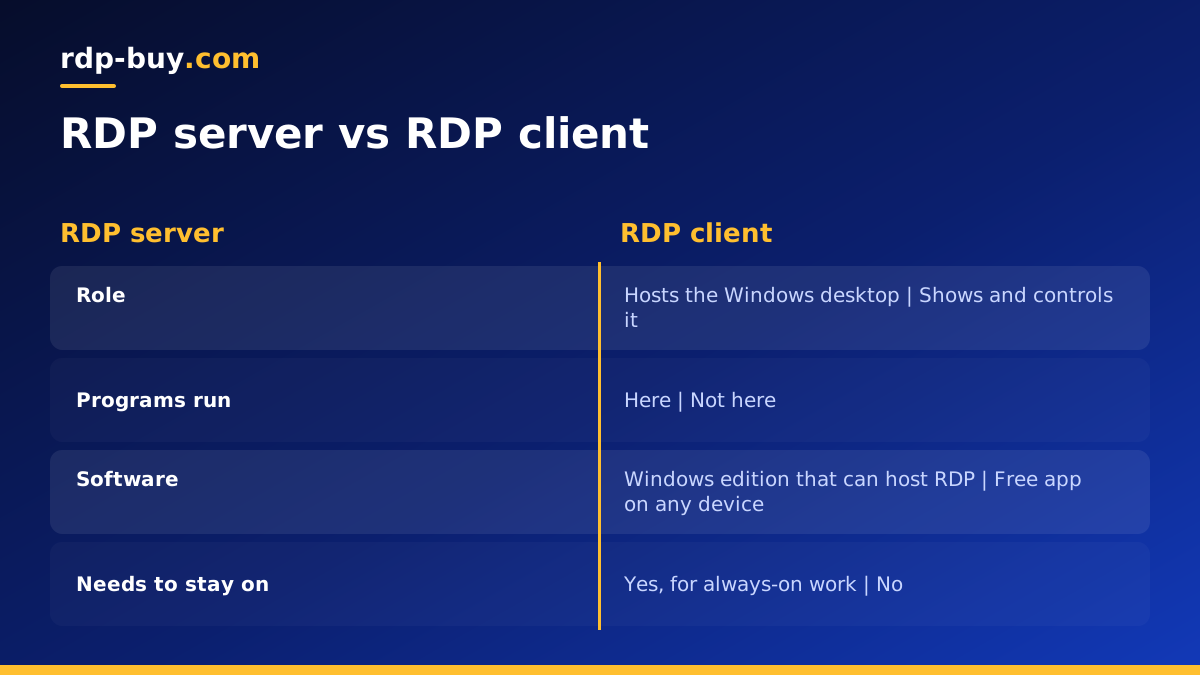
RDP server vs client: the basic split
Remote Desktop Protocol connects two sides. The RDP server, also called the host, is the computer you want to use from somewhere else. It runs Windows, holds your files, runs your programs and does all the processing. The RDP client is the program on the device in front of you, whether that is a laptop, a Mac, a phone or a tablet. It sends your keyboard and mouse input to the server and shows you the screen the server draws.
The confusion usually comes from the words. People say they want an RDP when they mean a remote Windows machine, which is the server side. Others install an RDP app and wonder why there is nothing to connect to, because they have only the client side. Once you separate the two roles, choosing what you need becomes straightforward: a client is usually free and already installed, while the server is the machine you have to provide, either your own PC or a hosted RDP server.
What the RDP server does
On the server, a Windows service called Remote Desktop Services listens for incoming connections, by default on port 3389. When a client connects, the server checks the user name and password, usually with Network Level Authentication, then creates a session. That session is a full Windows desktop running on the server, independent of whatever appears on its own monitor.
Everything heavy happens on the server: the programs, the browser tabs, the trading platform, the files and the network traffic to outside services. That is why the server's location, memory and processor matter for performance, and why the client device can be modest. It also explains why programs keep running when you disconnect: they live on the server, not on your device.
- Runs: Windows, your programs and their network connections.
- Stores: your files, settings and logged in sessions.
- Controls: who can log in, through user accounts and the firewall.
- Needs: to be switched on and reachable, ideally around the clock.
Which Windows versions can be an RDP server?
Not every Windows edition can host Remote Desktop. Windows Pro, Enterprise and Education editions can accept incoming RDP connections, normally for one user at a time. Windows Home cannot act as an RDP server at all, although it can use the client to connect out to other machines.
Windows Server editions are built to be RDP hosts. They allow administrative connections out of the box and, with the right Remote Desktop Services licensing, can host sessions for several users at once. This is why hosted RDP servers usually run Windows Server. With rdp-buy.com the Windows licence is included in Windows prices, so you do not need to source one separately.
What the RDP client does
The client is lighter. It opens a connection to the server address, sends your credentials, then streams your input one way and the screen updates the other. Good clients also handle extras: clipboard sharing, mapping local drives so you can copy files, redirecting printers and audio, and spanning several monitors.
Because the client mostly displays and forwards, it runs well on older laptops, budget tablets and phones. Your device's power has little effect on how fast programs run on the server.
RDP clients for every device
You almost certainly have access to a client already. These are the common options.
- Windows: Remote Desktop Connection is built in. Search for mstsc in the Start menu.
- Mac: Microsoft publishes a free client in the Mac App Store. Our guide on how to connect to your RDP server covers it.
- Android: Microsoft's client is on Google Play. The guide on Windows RDP for Android walks through setup.
- iPhone and iPad: Microsoft's client is on the App Store.
- Linux: Remmina and FreeRDP are the common choices, covered in our guide to RDP on Linux.
- Web browsers: some setups offer browser based access through a gateway, though most people use a native app.
Client settings that make a real difference
Most people connect with default settings and never look further, but a few client options change the experience noticeably. In Remote Desktop Connection on Windows, click Show Options to see them.
On the Display tab, you can choose a fixed resolution or full screen and turn on all your monitors. On the Local Resources tab, you decide whether the clipboard, drives and printers are shared with the server. Sharing a local drive is the simplest way to move files: it appears inside the session under This PC, and you can copy files across as if it were a USB stick. On the Experience tab, turning off visual extras such as desktop background and animations helps on slower connections.
If you connect to the same server often, save the settings as an RDP file on your desktop. Double clicking it opens the connection with everything already configured, which is handy for people who manage several servers or hand a ready made shortcut to a colleague.
Server vs client side by side
This quick comparison sums up the two roles.
- Role: the server hosts the desktop; the client displays and controls it.
- Where programs run: on the server, never on the client.
- Software: the server needs a Windows edition that can host RDP; the client is a free app on almost any device.
- Must stay on: the server, if you want programs running around the clock; the client can be closed at any time.
- Security settings: mostly on the server, such as passwords, firewall rules and the RDP port.
- Performance depends on: mostly the server and the connection between the two.
Using your own PC as the server vs renting one
If you already own a Windows Pro machine, you can turn on Remote Desktop and use it as your server. That works for occasional access, but it comes with practical issues. The PC must stay on and awake, the home connection must stay up, and reaching it from outside means router port forwarding or a VPN, which exposes your personal machine and files.
A hosted server avoids those problems. It runs in a data centre with its own public IP address, stays on around the clock, and keeps your personal computer separate from the internet facing machine. You can also choose where it runs, which matters for trading and for tools that call APIs in a particular region. For a broader look at the options, read RDP vs VPS.
How to set up both sides in a few minutes
With a hosted server, the server side is prepared for you. A typical setup looks like this.
- Step 1: choose a Windows server plan and a location close to the services you will use.
- Step 2: wait a few minutes for the server to be ready and note the IP address, user name and password.
- Step 3: open the client on your device and add a connection with the IP address.
- Step 4: sign in, then change the starting password straight away.
- Step 5: install your programs and leave them running; disconnect rather than sign out so they keep working.
Choosing the right RDP server
Since the client is free and nearly universal, the real decision is the server. Look for full admin access so you can install software and manage security, a dedicated IP address, a location near the services you depend on, and support that answers when you are stuck.
Windows plans at rdp-buy.com include full admin access, a dedicated IPv4 address, the Windows licence, 24/7 support and a choice of 33 locations, with monthly, half-yearly or yearly billing. Compare plans to buy RDP, or read which RDP plan you need if you are unsure about sizing.
