 Sign in
RDP for Trading: How to Build a Remote Trading Desk That Stays On
An RDP for trading is a remote Windows server that runs your trading platforms around the clock, close to your broker, while your own computer is free to sleep or travel. This guide covers when it helps, how to set one up and how to choose a Windows RDP server for trading work.
What RDP for trading means
Most trading platforms are Windows programs, and many of them are built to stay open. Charting tools refresh constantly, automated strategies watch for signals, and alerts depend on the platform being connected. On a home computer, that means leaving the machine on, awake and online all the time, and hoping nothing interrupts it.
An RDP for trading moves that work to a Windows server in a data centre. You connect with Remote Desktop from your laptop, phone or tablet, see the same desktop and platforms, and disconnect when you are done. The platforms keep running on the server. It is the same idea people describe as a VPS for trading, with the emphasis on the familiar Windows desktop that most trading software expects. If you are ready to look at options, plans to buy RDP are a good starting point.
This article is about the technical setup, not trading advice. It will not tell you what to trade; it explains how to give your platforms a stable place to run.
Why traders move platforms to a remote server
The reasons are practical rather than glamorous.
- Always on: automated strategies, expert advisors and alerts keep running when your laptop is closed, asleep or out of battery.
- Independent of home problems: power cuts, router restarts and Windows updates on your own PC no longer interrupt the platform.
- Location choice: you can place the server near your broker's trading servers, which shortens the network path for orders and price updates.
- Access anywhere: the same desktop is available from a phone, a tablet or another computer, with your layouts and logins intact.
- Separation: trading lives on a dedicated machine, away from personal browsing, games and downloads.
Which trading platforms run on Windows RDP
Because an RDP server is a normal Windows desktop with full admin access, it runs the same software you would install at home. That includes MetaTrader 4 and MetaTrader 5, cTrader, NinjaTrader, many broker supplied desktop terminals, and browser based platforms such as TradingView in a browser kept open on the server.
Forex traders using MetaTrader have the most established routine, which our blog guide on how a forex VPS works covers in depth. Stock, futures and crypto traders follow the same principles: install the platform, log in, keep it running and connect when needed. Check your broker's own documentation for any specific requirements, such as allowed regions or two factor sign in on new devices.
Choosing the right server location
Location matters more for trading than for most other uses. Every price update and order travels between your platform and the broker's servers, so a shorter route means fewer delays. Many brokers publish where their trading servers are hosted, often in major financial hubs. Choose a server location in or near the same region.
If you trade with several brokers in different regions, pick the location closest to the one where timing matters most, or use separate servers. rdp-buy.com offers 33 locations, listed on the server locations page, with dedicated country pages such as USA RDP, UK RDP and Germany RDP.
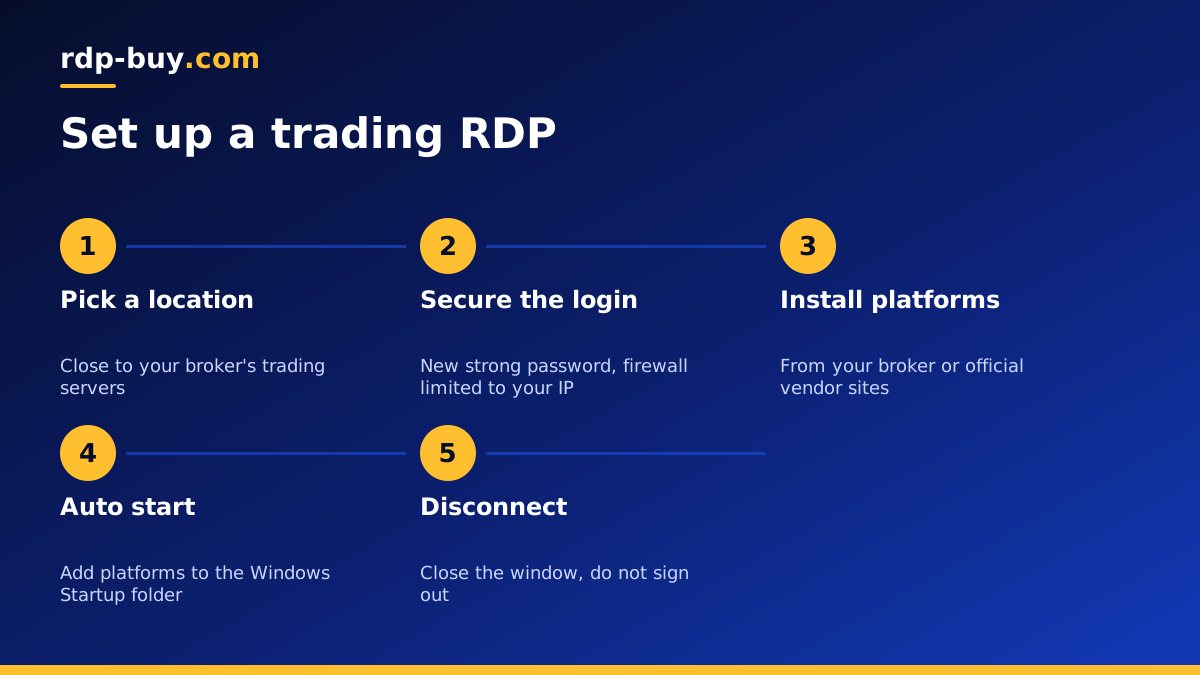
How to set up a trading RDP step by step
Once the server is ready, a careful first hour sets you up for months of stable running.
- Step 1, connect: use Remote Desktop with the IP, user name and password you receive. The guide on connecting to your RDP server covers each device.
- Step 2, secure the login: change the starting password and consider limiting RDP to your own IP addresses.
- Step 3, update Windows: install pending updates first, so a restart does not interrupt trading later.
- Step 4, install platforms: download each platform from your broker or the official vendor site only.
- Step 5, log in and configure: restore templates, profiles and indicators, then confirm the connection status shows as connected.
- Step 6, set auto start: place platform shortcuts in the Windows Startup folder so they reopen after a restart.
- Step 7, disconnect, do not sign out: close the Remote Desktop window to leave everything running.
Running automated strategies safely
Automated strategies are where a trading server pays off most, and also where mistakes cost most. Test new strategies on a demo account on the server before switching to live. Keep a written list of which strategies run on which accounts. After every Windows update or server restart, reconnect and confirm that the platform reopened, logged in and resumed the strategy, rather than assuming it did.
Avoid installing unnecessary software on a trading server. Each extra program uses resources and adds something that can crash or update at the wrong moment. If you also want to experiment with AI agents or general automation, consider a separate server so trading stays isolated; Windows RDP for AI agents covers that use.
Security for a trading server
A trading server holds logins to accounts with real money, so security is not optional.
- Use a strong unique Windows password and turn on two factor sign in with your broker wherever offered.
- Restrict RDP to your own IP addresses in the firewall, or connect through a VPN.
- Do not browse unrelated sites, open email attachments or install cracked software on the server.
- Keep Windows and every platform updated, scheduling restarts outside your trading hours.
- Follow the wider checklist in RDP best practices.
Common trading RDP problems and how to avoid them
Most trouble on a trading server comes from a short list of avoidable causes. Knowing them in advance saves a lot of frustration.
- Platforms closed after an update: Windows restarted overnight and nothing reopened. Use the Startup folder and set active hours so updates restart outside your trading sessions.
- Signed out instead of disconnected: choosing Sign out from the Start menu closes every program. Close the Remote Desktop window instead.
- Broker blocks the new login: some brokers ask for extra verification when they see a new device or region. Complete it once from the server and save the trusted device.
- Time zone confusion: the server clock may use a different zone from your own. Set it deliberately so logs and session times are easy to read.
- Running out of memory: too many charts or terminals slow everything down. Close what you do not use and watch Task Manager.
How much server do you need for trading?
Requirements depend on how many platforms, charts and strategies you run at once. A single platform with a few charts needs far less than several terminals, each with many charts and automated strategies. Windows itself also uses memory before your platforms start. Start by listing everything you will run simultaneously, check each vendor's guidance, then choose a plan with comfortable headroom.
Because billing is monthly, half-yearly or yearly, you can start with a modest plan, watch Task Manager for a week of normal use and move up if memory or processor use stays high. The guide on which RDP plan you need explains how to read those numbers.
Pick your trading RDP
For most traders the checklist is short: a Windows server with full admin access, a location close to the broker, a dedicated IP, and support that answers at any hour. Windows plans at rdp-buy.com include all of these, with the Windows licence included and servers ready in minutes.
Browse plans to buy a Windows RDP for trading, or go straight to forex RDP if MetaTrader is your main platform.
