 Sign in
Linux Server VSCode Setup: Code on Your VPS With Remote SSH
VS Code can open folders on a Linux server as if they were on your laptop, using the Remote SSH extension. This guide shows the full setup, from SSH keys to port forwarding, so you can write and run code on a Linux VPS with the editor you already know.
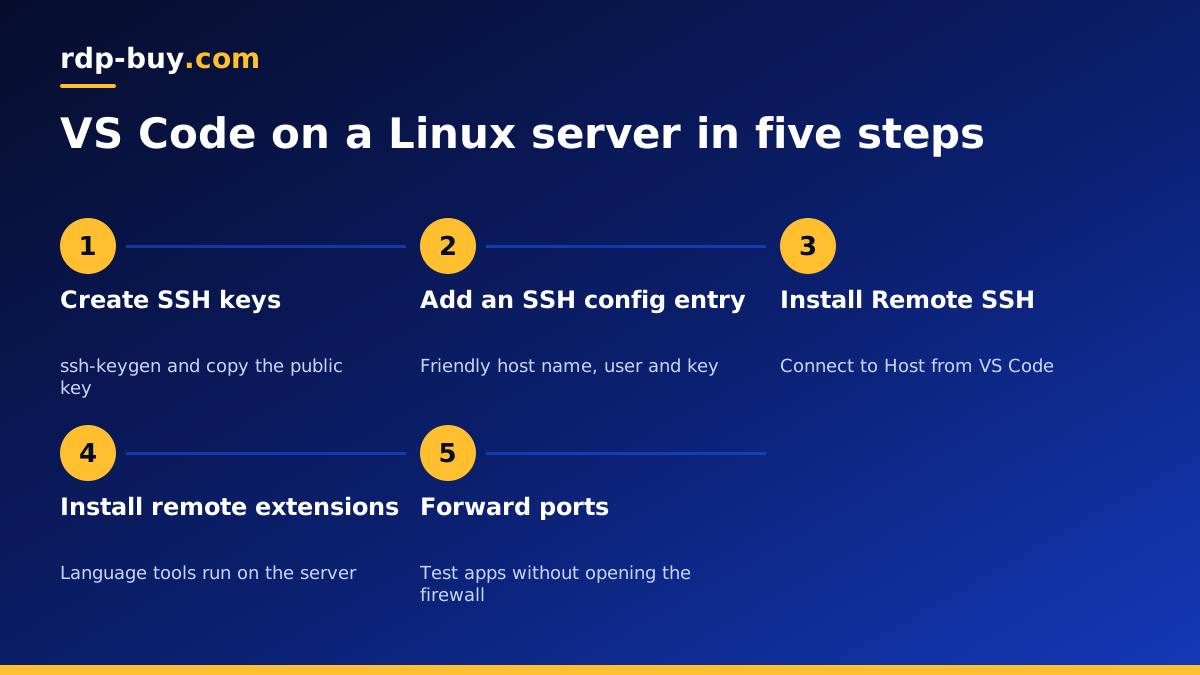
Why code on a Linux server from VS Code
Many projects end up running on Linux servers, while developers write code on Windows or macOS laptops. Copying files back and forth is slow and error prone. The Remote SSH extension for VS Code removes that gap. Your editor runs locally with all your themes and shortcuts, while a small VS Code server process runs on the Linux machine. Files, terminals, language servers and debuggers all operate on the server.
The benefits are practical. Builds and tests run in the same environment as production. Heavy tools use the server's CPU and memory instead of your laptop's battery. Long processes keep running when you close the laptop if you start them in tmux. And if you use an AI agent such as Claude Code (by Anthropic) on the server, you can review its changes in your editor as they happen.
What you need before you start
The setup is light. Make sure you have the following ready:
- A Linux server: any mainstream distro such as Ubuntu, Debian, AlmaLinux or Rocky Linux, with SSH enabled.
- The server's IP address and a user account: preferably a normal user with sudo rights, not root.
- VS Code on your computer: the desktop app for Windows, macOS or Linux.
- An SSH client: built into macOS, Linux and current Windows versions.
- Enough server memory: the VS Code server and language extensions use some RAM, so very small servers can feel slow with large projects.
Step 1: set up SSH key login
Password login works, but keys are safer and save you typing a password on every reconnect. On your computer, open a terminal and run ssh-keygen -t ed25519. Accept the default path and set a passphrase if you like.
Copy the public key to the server. On macOS and Linux, ssh-copy-id user@server-ip does it in one step. On Windows, open the contents of the .pub file and append it to ~/.ssh/authorized_keys on the server. Then test with ssh user@server-ip. If you log in without a password prompt, keys are working. Our guide on RDP vs SSH explains more about how SSH access works.
Step 2: add a host entry to your SSH config
VS Code reads the same SSH config file as the command line. Adding an entry gives your server a friendly name and saves options in one place. Open ~/.ssh/config on your computer, or create it, and add a block with a Host name, the HostName set to your server's IP, the User, and the IdentityFile path to your private key.
Now ssh myserver works in a terminal, and the same name appears in VS Code's remote host list. If your server uses a custom SSH port, add a Port line to the same block.
Step 3: install Remote SSH and connect
In VS Code, open the Extensions view, search for Remote SSH and install the extension published by Microsoft. A new remote indicator appears in the bottom left corner of the window.
Click it, choose Connect to Host, and pick the server name from your config. VS Code opens a new window, connects over SSH, and installs its server component in your home directory on the Linux machine the first time. When the status bar shows the server name, you are connected. Choose Open Folder and pick a project directory on the server.
Step 4: install extensions on the server side
Extensions in VS Code run either locally or remotely. Themes and keymaps stay local. Language support, linters, formatters and debuggers need to run where the code lives. When you open the Extensions view while connected, you will see a section for the remote host with an Install in SSH button for each extension you use.
Install only what each project needs. Every remote extension uses memory on the server, so a lean set keeps things responsive, especially on smaller plans.
Step 5: use the terminal and forward ports
Open a terminal in VS Code and it runs on the server, in the project folder. You can install packages, run tests, start Docker containers and use Git exactly as if you had logged in with SSH.
When you start a web app or API on the server, VS Code can forward its port to your laptop automatically. A notification offers to open the app in your local browser, and the Ports panel lists every forwarded port. This lets you test a development server without opening its port to the internet, which is both safer and simpler than changing firewall rules.
Common problems and fixes
Most connection issues come from a short list of causes:
- Permission denied (publickey): the server does not have your public key, or the IdentityFile path is wrong. Check authorized_keys and file permissions.
- Connection timed out: the IP or port is wrong, or a firewall blocks SSH. Test with the plain ssh command first.
- Server install fails: the home directory may be full or the server cannot reach the download location. Free some space and retry.
- Slow or frozen window: the server may be short on memory. Disable heavy extensions or choose a larger plan.
- Disconnects on idle: add ServerAliveInterval to your SSH config so the connection sends keep-alive messages.
A practical daily workflow
Once the connection works, a simple routine keeps remote development smooth. Start each session by connecting to the server from the recent list in VS Code, which reopens your last folder. Pull the latest changes with Git in the integrated terminal. Run long jobs, such as test suites, data imports or an AI agent, inside a tmux session so they survive if your laptop sleeps or the Wi-Fi drops. Reattach later with tmux attach from any terminal.
Commit often and push to your Git host, so the server is never the only copy of your work. If you want a separate environment for each project, use Dev Containers on top of Remote SSH: VS Code can build a container on the server from a configuration file and open the project inside it. That keeps dependencies for different projects apart while still using one server. When you finish for the day, simply close the window. The server keeps running, ready for the next session, from the same laptop or a different one.
Security tips for remote development
A development server often holds source code, API keys and database credentials, so it deserves care. Use SSH keys and disable password login once keys work. Keep a firewall on with only SSH open, and use VS Code port forwarding instead of exposing development ports. Store secrets in environment files outside the repository. Keep the system updated with automatic security patches. If several people share the server, give each a separate user account.
Choosing a VPS for VS Code remote development
For remote development, memory and location matter most. Memory keeps language servers, builds and containers responsive. A location close to you keeps typing and file saves feeling instant, since every keystroke in the terminal travels to the server and back. rdp-buy.com offers 33 locations, so you can pick a data centre near where you work.
Every plan includes full root access, a dedicated IPv4 address, 24/7 support and monthly, half-yearly or yearly billing, with servers ready in minutes. Compare our VPS hosting plans to pick a size, or see the Docker VPS page if your projects run in containers. Our article on the best Linux distro for a server helps you choose the operating system.
