 Sign in
RDP File Transfer: How to Move Files to and From Your Server
Moving files between your own computer and a remote desktop is one of the first things people need after they connect. This guide shows every practical way to transfer files over RDP, which method suits which job, and how to fix it when copy and paste stops working on your Windows RDP server.
The quick answer
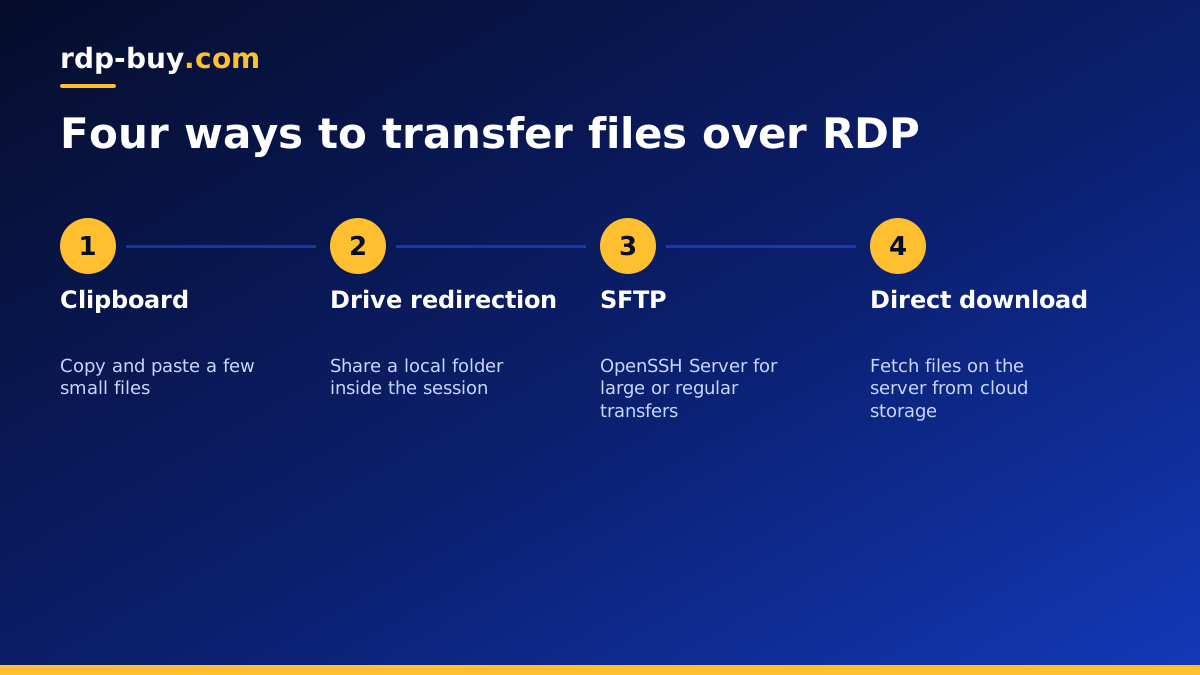
For a few small files, copy them on your computer and paste them into the remote desktop. For larger files or whole folders, share a local drive or folder with the remote session using drive redirection, then copy from it inside the server. For very large files, regular syncing or automation, use SFTP or a cloud storage folder instead of RDP itself.
All of these work on a standard Windows RDP with administrator access. The sections below show the steps on Windows, Mac and mobile, plus the settings that sometimes block them.
Method 1: copy and paste through the clipboard
Remote Desktop shares your clipboard with the server by default. That covers text, and on Windows clients it also covers files.
On your own computer, select the files in File Explorer and press Ctrl and C. Switch to the remote desktop window, open the folder where you want the files, and press Ctrl and V. A progress window appears while the files copy. The same works in reverse, from the server back to your computer.
This is the fastest method for a handful of documents, scripts or installers. It is less reliable for large files: if the connection drops halfway through, the copy fails and has to start again. File copy through the clipboard is also more limited in some non Windows clients, which is where drive redirection helps.
Method 2: share a local drive with drive redirection
Drive redirection makes a drive or folder from your own computer appear inside the remote session, as if it were plugged into the server. You can then open, copy and save files there with File Explorer on the server.
On Windows, open Remote Desktop Connection and click Show Options. Go to the Local Resources tab, click More under local devices and resources, tick Drives, or expand it and tick only the drive you need, then connect. Inside the server, open File Explorer and look under This PC for an entry named after your drive and computer.
On a Mac, open the Windows App, edit the saved PC, and open the Folders tab. Turn on folder redirection and add the folder you want to share. After you connect, it appears under This PC on the server. Mobile clients for iOS and Android offer similar storage options in the connection settings, though they are best for occasional files.
Drive redirection handles larger files and whole folders better than the clipboard, and it is the easiest method when you need to move many files at once. For privacy, share a single folder rather than your whole drive.
Method 3: SFTP for large files and regular transfers
When you move large files often, or want to script uploads, a file transfer protocol is more dependable than RDP. Windows Server includes an optional OpenSSH Server feature. Once installed and started, it lets you connect with any SFTP client, such as WinSCP or FileZilla on Windows, or the built-in scp and sftp commands on Mac and Linux.
To set it up, open Settings on the server, go to optional features, add OpenSSH Server, then start the sshd service and set it to start automatically. Allow its port in Windows Defender Firewall and connect from your client using the server's IP address and your Windows username. SFTP can resume interrupted transfers in many clients, which matters for large archives and backups.
Only open the port you need, use a strong password or SSH keys, and keep the service updated, just as you would for Remote Desktop itself.
Method 4: cloud storage or a download link
Sometimes the simplest path is to avoid moving files through your own connection at all. Because the server sits in a data centre, it can download files directly from the internet, often far faster than your home connection could upload them.
Upload the file once to a cloud storage service you already use, then sign in or open the share link in a browser on the server and download it there. For software, download installers straight from the vendor's official site on the server rather than copying them from your computer. For code, clone repositories from GitHub directly on the server. This also keeps large files off your own upload, which is useful on slower home connections.
Which file transfer method should you use?
Each method fits a different job. Pick by file size, how often you transfer, and which device you connect from.
- A few small files: copy and paste through the clipboard.
- Many files or folders: drive redirection from Windows or folder redirection from the Mac Windows App.
- Large files or scheduled transfers: SFTP with OpenSSH Server on the remote machine.
- Software and public files: download them directly on the server from the official source.
- Files shared with a team: a cloud storage folder synced on the server.
Fixing RDP copy and paste or drive problems
If files will not copy, work through these checks in order. Most problems come from one setting on either the client or the server.
- In the client, check that Clipboard is ticked on the Local Resources tab, and that Drives is ticked under More if you use drive redirection.
- Restart the clipboard helper on the server: open Task Manager, find rdpclip.exe in the Details tab, end it, then run rdpclip from the Run box.
- Check Group Policy on the server under Remote Desktop Services, Remote Desktop Session Host, Device and Resource Redirection. Settings named Do not allow Clipboard redirection or Do not allow drive redirection must be not configured or disabled.
- Disconnect fully and reconnect after changing any setting, because redirection is set up when the session starts.
- For very large files that fail partway through, switch to SFTP or cloud storage rather than retrying the clipboard.
- If redirected drives appear but are slow, compress many small files into one archive before copying.
Keep file transfers safe
Shared drives and clipboards are convenient, but they also connect your own computer to the server. Only redirect drives when you connect to a server you control, share a single folder rather than the whole disk, and turn redirection off again when you do not need it. Scan downloaded files on the server, keep Windows updated, and follow the hardening steps in our RDP best practices checklist. If you are new to connecting at all, start with our guide on how to connect to your RDP server.
Choosing an RDP server that makes file work easy
File transfers feel quicker when the server is close to you and has room for your data. Choose a location near you from the 33 server locations, and pick a plan with enough disk space for the files you plan to keep there. Our guide to which RDP plan you need helps with sizing.
When you buy RDP from rdp-buy.com, you get full administrator access, so you can enable OpenSSH, change redirection policies and install any transfer tool you like. The Windows licence is included in the price, every server has a dedicated IPv4 address, billing is monthly, half-yearly or yearly, and 24/7 support can help if a setting gets in your way. Servers are ready in minutes.
