 Sign in
VPS How to Setup: First Steps to Secure a New Linux Server
Setting up a VPS properly takes one focused session: update the system, create a safe login, lock down SSH, turn on a firewall and automatic updates, then add backups and monitoring. This guide walks through each step on a fresh Linux server, whether you just chose to buy VPS hosting or are rebuilding an old one.
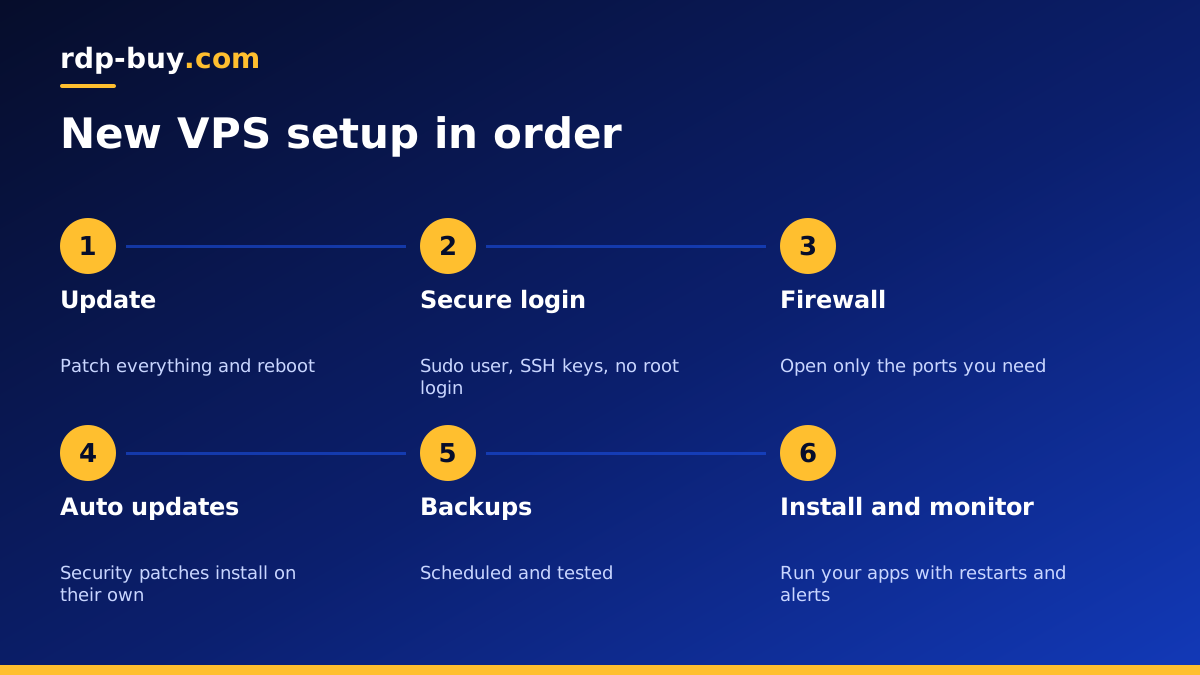
Before you begin
When a new VPS is ready, you receive its IP address and root login details. Everything in this guide is done over SSH from your own computer. If you have not connected before, our guide on how to connect to your server covers the basics, and RDP vs SSH explains why Linux servers use SSH.
The commands below are for Ubuntu and Debian, the most popular VPS systems. On AlmaLinux or Rocky Linux the ideas are identical, with dnf in place of apt and firewalld in place of ufw. Keep your first SSH session open while you change login settings, and test new settings in a second window, so a typo never locks you out.
Step 1: update the system
A freshly installed image may be a few weeks or months behind on security fixes. Log in as root and run apt update followed by apt upgrade. If the kernel was updated, reboot with reboot and log back in. This closes known security holes before you expose any services, and it makes sure the packages you install next are current.
Step 2: set the hostname and timezone
Give the server a meaningful name with hostnamectl set-hostname yourname, so you always know which machine a terminal belongs to. Set the timezone with timedatectl set-timezone followed by your region, for example Europe/London. Correct time matters for logs, scheduled jobs, certificates and anything that signs requests to APIs. Check that time sync is active with timedatectl status.
Step 3: create a normal user with sudo
Working as root all the time is risky, because every command has full power over the system. Create a personal user with adduser yourname and add it to the sudo group with usermod -aG sudo yourname. From now on, log in as this user and prefix administrative commands with sudo. If a script or tool misbehaves, it is limited to your user's permissions unless you deliberately elevate it.
Step 4: switch to SSH key login
Passwords can be guessed. SSH keys effectively cannot. On your own computer, create a key pair with ssh-keygen -t ed25519 if you do not have one. Copy the public key to the new user with ssh-copy-id yourname@server-ip, or paste it into ~/.ssh/authorized_keys for that user.
Open a new terminal and confirm you can log in as the new user without a password. Only then edit /etc/ssh/sshd_config: set PasswordAuthentication to no and PermitRootLogin to no. Restart SSH with sudo systemctl restart ssh and test again in another window before closing your original session.
Step 5: turn on a firewall
A firewall makes sure only the services you choose are reachable. On Ubuntu, ufw is the simplest option. Allow SSH first with sudo ufw allow OpenSSH, then allow any other ports you need, such as 80 and 443 for a website. Enable it with sudo ufw enable and check the rules with sudo ufw status.
Note that Docker manages its own firewall rules and can publish container ports even when ufw would block them. If you run containers, bind ports to 127.0.0.1 when they only need local access, or put a reverse proxy in front.
Step 6: enable automatic security updates
New vulnerabilities are found all the time, and a server that nobody updates becomes a target. Install the unattended-upgrades package and enable it with sudo dpkg-reconfigure unattended-upgrades. Security patches will then install on their own. You still need to plan reboots for kernel updates, but the most urgent fixes no longer wait for you to remember.
Step 7: add protection against brute force
Every server with a public IP sees automated login attempts. With key-only SSH they will fail, but they still fill logs. Fail2ban watches log files and temporarily blocks addresses that keep failing. Install it with sudo apt install fail2ban, and its default SSH jail starts protecting you right away. Changing the SSH port can reduce noise too, though it is not a replacement for keys and a firewall.
Step 8: add swap on small servers
Many VPS images come without swap. If memory runs out, Linux kills processes to recover, which can take down a database or an AI agent without warning. A modest swap file gives the system breathing room for short spikes. Create one with fallocate, set its permissions, format it with mkswap, enable it with swapon and add it to /etc/fstab so it survives reboots. Swap is a safety net, not a substitute for enough memory.
Step 9: plan backups
A server is not a backup of itself. Decide what matters, usually application data, databases and configuration files, and copy it somewhere else on a schedule. Tools such as restic or borg make encrypted, incremental backups to another server or object storage. Dump databases to files before backing them up. Most importantly, test a restore once, so you know the backups actually work.
Step 10: install your software and monitor it
Now the server is ready for real work. Install what your project needs, such as Docker, a web server, a database, or an automation tool like n8n. Run services under systemd or Docker with restart policies so they come back after a reboot.
Finally, set up simple monitoring. Check disk space with df -h, memory with free -h and logs with journalctl. An external uptime check that alerts you when your site or API stops responding is worth adding for anything important.
- Websites and APIs: a web server or reverse proxy with free TLS certificates.
- Containers: Docker Engine and Compose. See our Docker VPS page.
- AI agents and automation: n8n, OpenClaw or Claude Code (by Anthropic). See our AI agent hosting hub.
- Remote desktop on Linux: a light desktop with xrdp, if a tool needs a screen.
Mistakes to avoid on a new server
Most problems on new servers come from a few habits that are easy to avoid once you know them. Do not disable password login before confirming your key works in a second window. Do not open database ports such as those for MySQL, PostgreSQL or Redis to the whole internet; keep them on localhost or a private network. Do not run every service as root just because it is quicker. Do not store API keys inside the project folder that you push to Git. And do not assume the provider backs up your data unless your plan clearly says so.
Finally, write down what you did. A short text file with the commands you ran, the ports you opened and the services you installed saves hours when you rebuild the server or hand it to a colleague. Even better, put the setup into a script or a Docker Compose file, so the next server takes minutes instead of an afternoon.
Your new VPS setup checklist
Keep this list handy for every new server, so nothing is skipped:
- System updated and rebooted.
- Hostname and timezone set, time sync active.
- Personal sudo user created.
- SSH keys working, password and root login disabled.
- Firewall on with only the needed ports open.
- Automatic security updates enabled.
- Fail2ban installed.
- Swap added on small plans.
- Backups scheduled and a restore tested.
- Services set to restart, monitoring in place.
Start with the right VPS
A good setup starts with a plan that fits the job. Choose memory for your largest workload, a location close to your users or the APIs you call, and an operating system you know. rdp-buy.com offers 33 locations with full root access, a dedicated IPv4 address, 24/7 support and monthly, half-yearly or yearly billing, and servers are ready in minutes.
Compare our Linux VPS plans, then follow the checklist above on your first login. Not sure which operating system to pick? Read our guide on the best Linux distro for a server.
