 Sign in
USA RDP for Creative Work: A US Desktop for Design Teams
USA RDP for creative work gives designers, writers and studios a Windows desktop in the United States that stays on, keeps shared assets in one place and works from any laptop. This guide explains which creative jobs it suits, which it does not, and how to buy RDP in the USA with the right plan.
What USA RDP for creative work actually means
A remote desktop, or RDP server, is a full Windows machine that lives in a data centre instead of on your desk. You connect to it from your own computer, tablet or even a phone, and you see its desktop in a window. Everything you open runs on the server, not on the device in front of you.
For creative teams the interesting part is where that desktop sits. A US RDP server has a dedicated IPv4 address in the United States, so the sites, marketplaces and client portals you open see an American visitor. If your clients, ad accounts, stock libraries or publishing platforms are based in the US, working from a US desktop keeps your sessions consistent with where your business operates.
It also gives a scattered team one shared place to work. A freelancer in one country, an editor in another and a client reviewer in a US city can all reach the same Windows desktop, the same fonts and the same project folders, without emailing files back and forth.
Creative jobs that suit a US Windows desktop
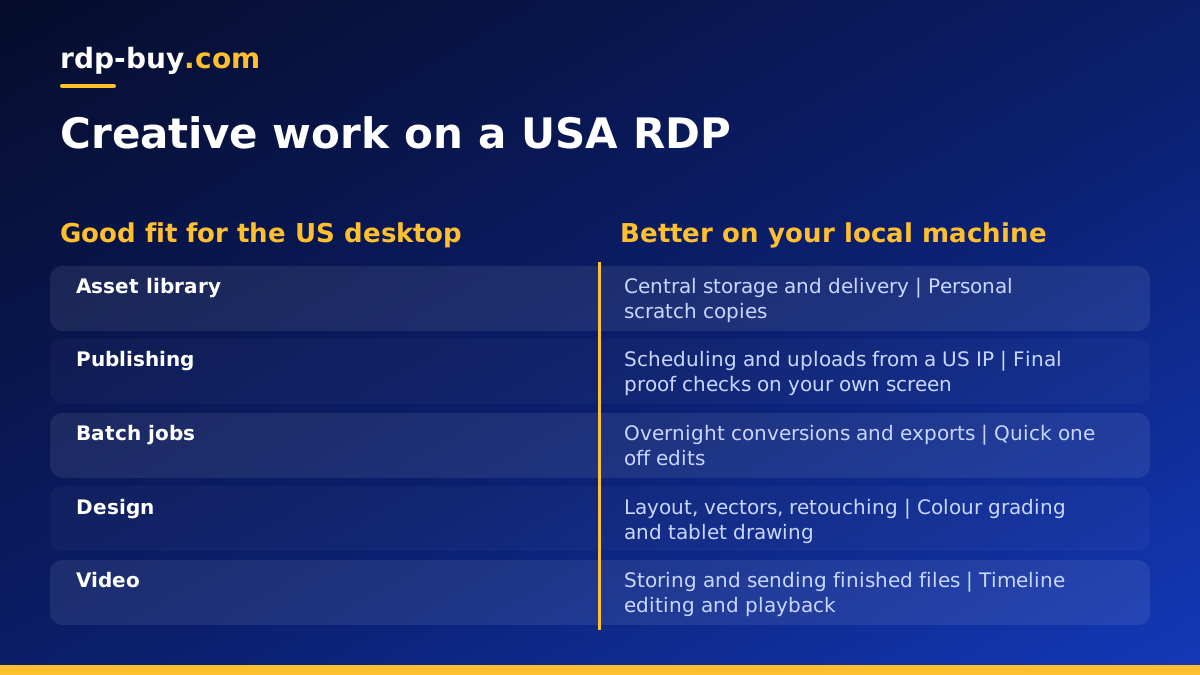
Not every creative task belongs on a remote server. The work that fits best is the work that needs to stay online, stay organised or be reached from more than one place. These are the jobs we see a US desktop handle well:
- Asset management and delivery. Keep a master library of logos, templates, brand guides and exports on one machine, then upload finished files to clients and platforms from a US IP.
- Content publishing. Schedule and publish blog posts, product listings, newsletters and social content from the same location every day, which keeps logins steady across tools.
- Layout, writing and light design. Document layout, presentation decks, vector work and photo retouching at normal sizes run comfortably on a well sized Windows desktop.
- Batch processing. Long jobs such as converting folders of images, renaming files, generating thumbnails or rendering simple templates can run on the server overnight while your own laptop is closed.
- Client review sessions. Share a screen from the remote desktop so a US client sees the work running from a stable machine rather than a home connection.
- Testing US storefronts and pages. Check how your designs appear on US versions of sites and marketplaces, including currency, language and region specific layouts.
Where a remote desktop is the wrong tool
Be honest about the limits before you buy. Remote desktop sends you a picture of the screen, so anything that depends on smooth, frame by frame playback, colour critical grading or pen pressure from a drawing tablet is better done on a strong local machine. Heavy video editing and 3D work also lean on a graphics card, and a standard RDP plan is built around CPU, memory and storage rather than GPU power.
A practical split many studios use is simple: do the hands on, colour sensitive work locally, then move the files to the US desktop for storage, publishing, batch jobs and delivery. The remote server becomes the always on hub, and your laptop stays the creative tool.
How to size a USA RDP plan for creative work
Creative software tends to be memory hungry, and design files grow quickly. When you compare plans, think about three things in this order:
- Memory first. Several open apps, a browser with many tabs and large documents all compete for RAM. If you expect more than one person to log in, or you keep big files open, pick more memory rather than more CPU.
- Storage second. Asset libraries, exports and version history add up. Choose a plan with room to spare, and keep a separate backup copy so one machine is never the only place your work lives.
- CPU third. More cores help with batch exports and conversions running in parallel. For writing, layout and publishing, a modest CPU is usually enough.
Choosing a US city for your creative desktop
We offer several US cities among our 33 server locations, from the East Coast to the West Coast and Hawaii. The rule of thumb is to place the desktop near the people who use it most or the services it talks to most.
A team that mostly serves East Coast clients and publishers will usually feel at home on an eastern city. A studio working with West Coast agencies, media companies or tech clients may prefer a western city. If your team is spread across the world, pick the US location that sits roughly between your main users, then test the feel of the connection in the first days.
Setting up the desktop for a creative team
Once the server is ready, a little structure at the start saves a lot of confusion later. A good first setup looks like this:
- Connect with the Remote Desktop app using the IP address and login you receive. Our guide on how to connect to your RDP server walks through Windows, Mac and mobile.
- Use your full administrator access to create a separate Windows user for each person, so settings, recent files and browser logins stay personal.
- Install the creative tools your team is licensed to use, plus a cloud storage or sync client for backups.
- Create a clear folder structure: incoming briefs, working files, approved exports and client deliveries.
- Install your brand fonts system wide so every user sees the same typography.
- Turn on automatic Windows updates outside working hours and set a strong password policy for every account.
Keeping client work safe on a shared server
Creative teams often hold unreleased campaigns, product photos and client brand assets, so treat the remote desktop with the same care as an office machine. Give each person only the folders they need, remove accounts as soon as a contractor finishes, and avoid saving client passwords in plain text files on the desktop.
Keep at least one copy of important work off the server, either in cloud storage or on a local drive. Our guide to admin RDP covers how full administrator rights let you lock down users, install security tools and control what runs at startup.
Windows RDP or a Linux VPS for creative projects?
Most creative software is built for Windows or macOS desktops, which is why a Windows RDP is the usual pick for design and publishing. The Windows licence is included in our Windows prices, so you can install your apps straight away.
A Linux VPS makes more sense when the creative output is a website, a portfolio, an image processing script or a media server rather than a desktop app. If you are unsure, our comparison of RDP vs VPS explains the trade offs in plain terms.
How to buy USA RDP for your studio
When you are ready, open our USA RDP plans, choose the US city that fits your team, then pick the memory and storage that match the work you listed above. You can pay monthly, half-yearly or yearly, and checkout accepts card, PayPal or crypto. If you prefer a specific method, see how to buy RDP with PayPal or pay by card.
Servers are ready in minutes, and 24/7 support is there if you need help with the first connection or user setup. Start with the plan that covers today's workload, watch how the team uses it for a few weeks, and move up when files or users grow.