 Sign in
USA RDP for Website Testing: See Your Site as US Visitors Do
If your customers are American but your team is not, USA RDP for website testing lets you open your site on a real Windows desktop with a US IP address and see exactly what US visitors see. This guide shows what to test, how to organise it and how to buy RDP in the USA for the job.
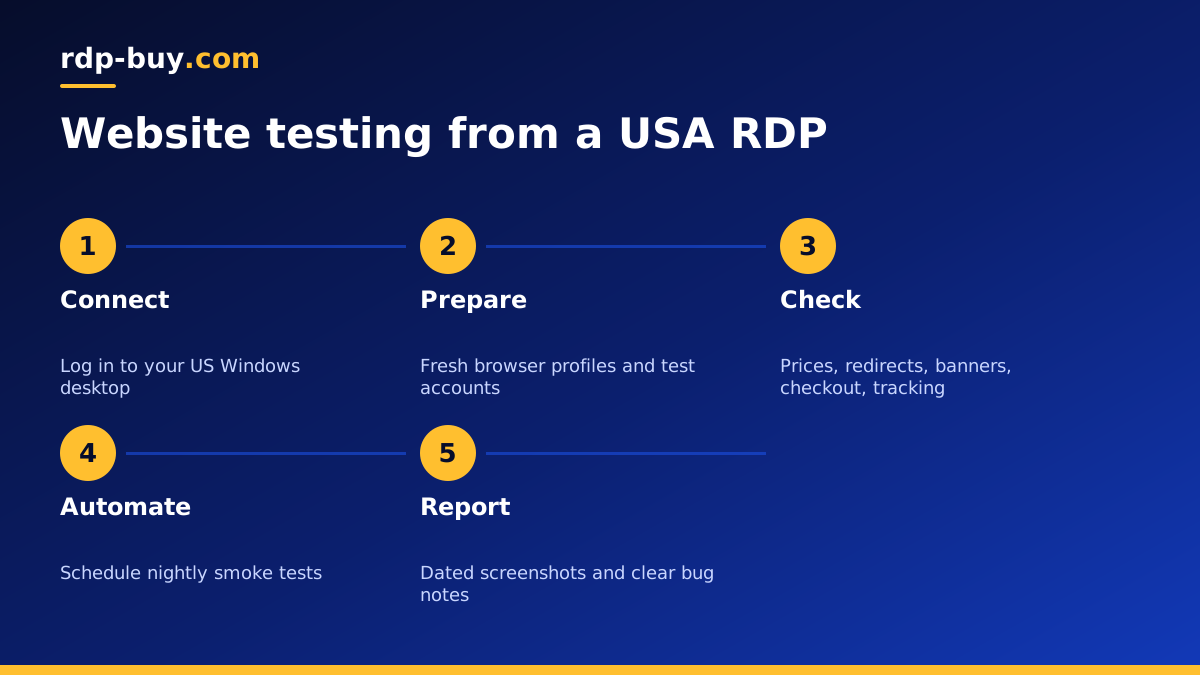
Why test your website from a USA RDP
Modern websites change based on where the visitor appears to be. Prices switch currency, cookie banners change wording, shipping options appear or vanish, some products are hidden, and ad networks show different campaigns. A tester outside the country often sees a different site from the one real customers use.
A US RDP server solves this by giving you a full Windows desktop in the United States with its own dedicated IPv4 address. You connect to it from anywhere, open a normal browser on the server, and every site you visit sees a visitor in the US. Because it is a complete desktop, you can install several browsers, keep test accounts logged in and leave long checks running.
Teams also like that the environment is consistent. Everyone on the project tests from the same machine, the same browser versions and the same location, so a bug found by one person can be reproduced by another.
Who needs a US testing desktop
If any of these describe you, a US desktop turns guesswork about what American users see into something you can check directly.
- Web agencies building sites for American clients from another country.
- Ecommerce teams checking US pricing, tax display, shipping rules and payment options.
- SaaS companies testing sign up, onboarding and billing flows for US customers.
- QA and test engineers who need a stable US environment for manual and automated checks.
- Marketers confirming that landing pages, tracking scripts and consent banners behave correctly for US traffic.
- Localisation teams making sure US English copy, date formats and units appear where they should.
What to test on your site from a US IP
Build a short checklist and run it after every major release. These are the areas that most often differ by country:
- Pricing and currency. Confirm the right currency, tax wording and any US only offers.
- Geo redirects. Make sure US visitors land on the correct store or language and are not bounced between versions.
- Consent and privacy banners. Check that the US banner and any state specific options load as intended.
- Checkout and payments. Walk through checkout with test cards in your payment provider's test mode, and check address forms accept US formats.
- Shipping and availability. Confirm delivery options and stock messages for US addresses.
- Ads and tracking. Verify pixels, tags and analytics fire for US sessions without errors.
- Page experience. Load key pages and note how they feel from a US connection, including images, fonts and third party scripts.
Setting up the desktop for testing
Treat the server as a clean lab. A simple setup that works for most teams:
- Connect using the Remote Desktop app. If you are new to it, follow our guide on how to connect to your RDP server.
- Install the browsers your customers use, and keep each one updated.
- Create separate browser profiles for logged out visitors, test customer accounts and admin users, so cookies never mix.
- Keep a shared document of test accounts, test card numbers from your payment provider and the checklist itself, stored somewhere access controlled rather than on the desktop.
- Use your full administrator access to create a Windows user for each tester, so personal settings and saved sessions stay separate.
- Set Windows region and time zone to match your main US audience when you need to check date and time displays.
Running automated tests from the server
Manual checks catch visual problems, but automated tests catch regressions every day without anyone remembering to run them. Because the RDP stays on around the clock, it is a natural place to schedule browser automation tools that open pages, click through flows and save screenshots.
A common pattern is to run a short smoke test every night against the live site and a fuller suite after each deployment. Save the results and screenshots to a shared folder, and send a simple alert to your team chat when a test fails. If your automation runs better on Linux, a USA VPS can host it headless while the RDP remains the place people log in to look at results.
Keep test traffic polite. Run checks against your own sites or sites you have permission to test, avoid hammering pages with heavy loops, and exclude test sessions from your analytics where possible so marketing reports stay clean.
Choosing a US city for testing
Different parts of the country can see different content when a site uses regional rules, regional stock or a content delivery network that serves visitors from nearby. We offer several US cities among our 33 server locations, so you can choose one that matches where most of your customers are.
If your audience spreads across the whole country, start with one coast that holds most of your sales, then add a second desktop on the other coast later if you find region specific issues worth tracking.
Testing tips that save time
Small habits like these turn a remote desktop into a reliable testing station rather than just another browser.
- Clear cookies or use a fresh profile before each run, so earlier visits do not change what you see.
- Take dated screenshots of every key page, which makes before and after comparisons easy.
- Note the browser, profile and time of each test in the bug report.
- Retest fixed bugs from the same desktop and profile that found them.
- Keep a list of pages that change by country, and give them extra attention after releases.
Keeping the test desktop safe and tidy
A testing machine often holds admin logins for staging sites, payment provider dashboards in test mode and customer style accounts. That makes it worth protecting like any other work computer.
Give every tester their own Windows account with a strong password, remove accounts when people leave the project, and avoid saving production admin passwords in the browser. Keep test and live credentials clearly separated so nobody places a real order by mistake. Windows updates should run outside testing hours, and browsers should update automatically so your results reflect what customers actually use.
Tidy the desktop regularly too. Old downloads, screenshots and browser profiles pile up quickly. A monthly clean up keeps storage free and makes it obvious which profiles and files are current. If you want a deeper look at locking down a Windows server, our guide to admin RDP explains what full administrator rights let you control.
RDP or VPS for website testing?
A Windows RDP is the right pick when people need to see and click through pages in a familiar desktop browser. A Linux VPS is better for scripted, headless tests and monitoring that nobody watches live. Many teams start with the desktop and add a VPS for automation once the test suite grows. Our guide to RDP vs VPS covers the difference in more depth, and our guide on which RDP plan you need helps you size the desktop.
Buying a USA RDP for your test lab
Open our USA RDP plans, choose the US city closest to your main customers, and pick memory based on how many browsers and testers will run at once. More memory helps when several people log in or automated tests run alongside manual checks.
The Windows licence is included in the price, billing is monthly, half-yearly or yearly, and you can pay by card, PayPal or crypto, including the option to buy RDP with crypto. Servers are ready in minutes and 24/7 support can help with first login, so your first US test run can happen the same day.