 Sign in
Windows RDP How to Use: A Beginner's Guide to Your First Server
Using Windows RDP is simpler than it looks: you connect to a Windows server over the internet and work on its desktop as if it were your own PC, while it keeps running after you leave. This beginner's guide covers every step, from your first login to everyday habits, and how to pick a plan when you buy RDP.
What Windows RDP is, in plain words
RDP stands for Remote Desktop Protocol, Microsoft's way of showing a Windows desktop from one computer on another. A Windows RDP server is a Windows machine in a data centre that you reach with Remote Desktop. You see its desktop in a window, use your own keyboard and mouse, and everything you run actually happens on the server.
That has two big advantages. The server is online around the clock, so programs keep working when your own computer is off. And because it has its own dedicated IP address and connection, it is a stable base for trading terminals, bots, office tools and AI agents. Our guide on RDP vs VPS explains how it compares with a Linux server.
What you need before you start
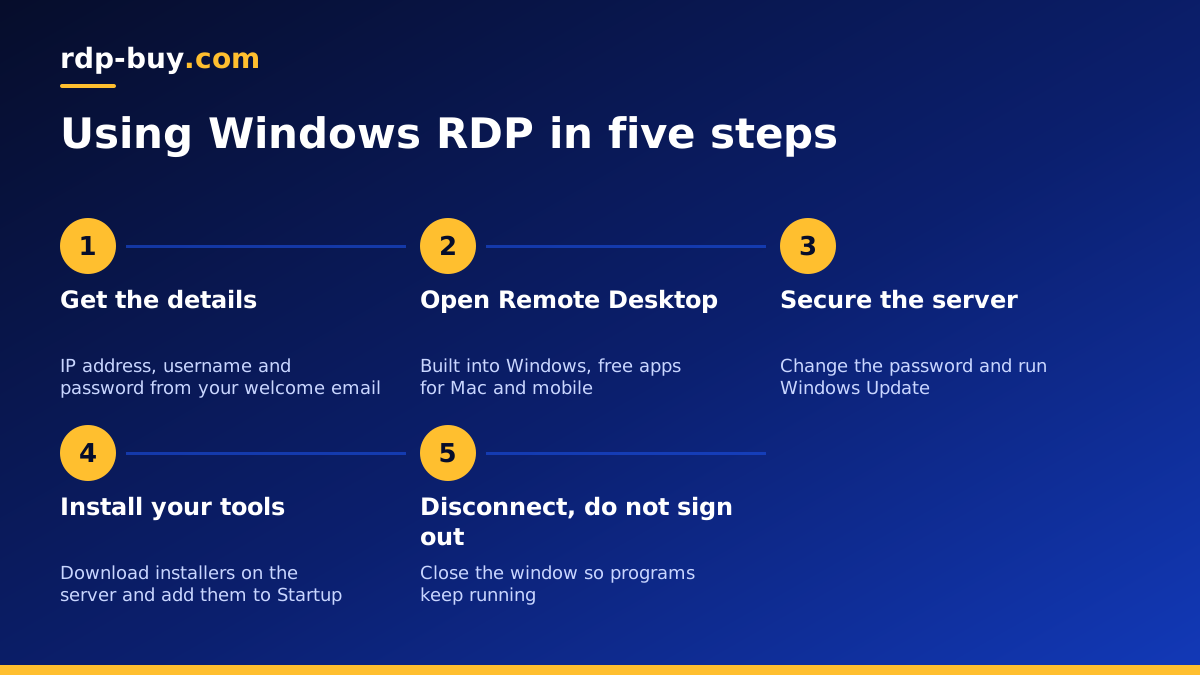
After you order a Windows server, you receive a welcome email with three things: the server's IP address, a username (usually Administrator) and a password. Keep that email safe. You also need a Remote Desktop app on the device you will connect from:
- Windows PC: Remote Desktop Connection is built in. Search for mstsc in the Start menu.
- Mac: the free Windows App from the Mac App Store.
- iPhone or iPad: the Windows App from the App Store.
- Android: Microsoft's Windows App (formerly Remote Desktop) from Google Play.
- Linux: a client such as Remmina, which supports RDP.
How to use Windows RDP: connecting for the first time
The steps are almost identical on every device. Here is the Windows version; the Mac and mobile apps follow the same pattern with an add PC button.
- Open Remote Desktop Connection.
- Type your server's IP address in the Computer field and click Connect.
- Enter the username and password from your welcome email.
- Accept the certificate warning on first connection; this is normal for a new server.
- Wait a few seconds while the desktop loads. You are now working on your server.
Your first ten minutes on the server
Before installing anything, do a few quick jobs that make the server safer and easier to use.
- Change the administrator password: press Control Alt End inside the session and choose Change a password. Use a long passphrase.
- Open Settings, then Windows Update, and install all updates. Restart if asked and reconnect.
- Check that Windows Defender Antivirus and the firewall are on.
- Set your time zone so scheduled tasks and logs make sense to you.
- Save the connection in your Remote Desktop app so you can reconnect in one click.
Installing software
You have full administrator access, so you install programs the same way as on a home PC: open the browser on the server, download the installer from the official website and run it. Downloads happen on the server's connection, not yours, so large installers are usually quick.
If a program must keep running when you leave, such as a trading terminal or a bot, set it to start automatically. The simplest way is to place a shortcut in the Startup folder (type shell:startup in the Run box), or use Task Scheduler to start it when the server boots.
Moving files between your computer and the server
There are three easy ways to transfer files.
- Copy and paste: copy a file on your PC, then paste it into a folder on the server. This works for small files.
- Local drives: before connecting, open Show Options, then Local Resources, then More, and tick the drives you want. They appear in This PC on the server.
- Cloud storage: sign in to your cloud storage on the server and download files there. Best for large files.
Disconnect vs sign out: the most important habit
This one point confuses more beginners than anything else. If you close the Remote Desktop window with the X, you are disconnected, but your session stays alive and every program keeps running. When you reconnect, everything is exactly where you left it.
If you choose Sign out from the Start menu, your session ends and your programs close. Use Disconnect when you want things to keep running, such as an expert advisor or an agent, and Sign out only when you are done and want to free up memory.
Never choose Shut down unless you mean it. A shut down server needs a restart from the control panel or support before you can connect again.
Adding other users
If a colleague needs access, give them their own account rather than sharing the administrator password. Open Computer Management, go to Local Users and Groups, create a new user with a strong password, then add them to the Remote Desktop Users group. Each person then gets their own desktop and settings.
For more on sharing a server, see the guide on how to connect to your RDP server, which also covers connection settings for each device.
Making the session comfortable
A few settings in your Remote Desktop app make long sessions easier. Under Display, choose full screen or a window size that fits your monitor, and enable multiple monitors if you have them. Under Experience, pick the option that matches your connection so the desktop stays smooth. Turning off desktop wallpaper and visual effects on slower connections makes a noticeable difference.
Keyboard shortcuts like Alt Tab go to the server when you are in full screen. To switch back to your own computer, use the connection bar at the top of the screen or minimise the session.
Using RDP for trading, bots and AI agents
Many people use Windows RDP to keep something running all the time. For trading, install your platform, log in to your broker, attach your expert advisors, then disconnect rather than sign out. For bots and scripts, run them as scheduled tasks so they restart after updates. For AI agents that need a real Windows desktop to click through apps or a browser, give the agent its own user account and keep its API keys in its own settings.
In every case, test a restart once: reboot the server, reconnect, and confirm everything came back on its own. The Windows RDP for AI agents page covers agent setups in more detail, and forex RDP plans suit trading terminals.
Common beginner problems and quick fixes
Most first-week issues have simple causes.
- Cannot connect: check the IP address, your internet connection, and whether the server was shut down instead of disconnected.
- Wrong password errors: check the keyboard layout and Caps Lock, and copy the password carefully from the email.
- Slow desktop: lower the display quality settings or choose a server location closer to you.
- Programs closed overnight: you probably signed out, or Windows restarted for updates. Add your programs to Startup.
- Still stuck: 24/7 support can check the server for you.
Choosing the right Windows RDP plan
Pick a plan by what you will run at the same time. One trading terminal or office app is light; several terminals, browsers or bots need more memory. The guide on which RDP plan you need walks through sizing, and the server locations page lists all 33 cities so you can choose one near your broker, users or services.
When you are ready, browse the Windows RDP plans. Every server includes full administrator access, a dedicated IPv4, the Windows licence in the price and 24/7 support, and is ready in minutes. You can pay by card, PayPal or crypto, with monthly, half-yearly or yearly billing.
