 Sign in
Windows RDP for Mac: How to Connect and What You Need
Windows RDP for Mac lets you run full Windows software from a MacBook or iMac by connecting to a Windows machine somewhere else, so nothing heavy has to install on your Mac. If you do not have a Windows computer to connect to, a Windows RDP server gives you one that stays online around the clock.
What Windows RDP for Mac actually means
RDP stands for Remote Desktop Protocol. It is the way Windows shares its desktop with another device over a network. When people search for Windows RDP for Mac, they usually want one of two things: a way to open Windows programs on a Mac, or a way to reach a Windows computer they already own from a Mac while they are away from it.
In both cases the Mac acts only as a window. The programs run on the Windows side, using that machine's processor, memory and storage. Your Mac sends keyboard and mouse input across the connection and receives a picture of the screen back. That is why RDP works well even on an older or lighter Mac: the hard work happens somewhere else.
This is different from running Windows inside a virtual machine on the Mac itself. A local virtual machine shares your Mac's resources, needs disk space, and stops the moment you close the lid. A remote Windows RDP session keeps running on the server after you disconnect, which matters if you want a trading platform, a bot or a long task to keep going. If you want a deeper look at the protocol itself, our guide on what RDP is and how it works covers the basics.
What you need before you connect
You need three things: an RDP client on the Mac, a Windows machine that accepts remote connections, and login details for that machine.
- An RDP client for macOS. Microsoft publishes a free client for Mac, now called Windows App (it replaced the older Microsoft Remote Desktop app). It is available in the Mac App Store.
- A Windows host. This can be a PC in your office, a Windows Server machine, or a hosted RDP server. Home editions of Windows cannot accept incoming RDP connections, so the host needs a Pro, Enterprise or Server edition.
- An address. The public IP address or hostname of the Windows machine. A hosted server comes with a dedicated IPv4 address, so the address does not change between sessions.
- A username and password. Use an account that is allowed to sign in remotely. On a hosted server this is the administrator account you receive when the server is ready.
- An open path. The host's firewall must allow Remote Desktop, and if it sits behind a home router you would need port forwarding or a VPN. A hosted server avoids this step because it is already reachable on the internet.
How to connect from a Mac, step by step
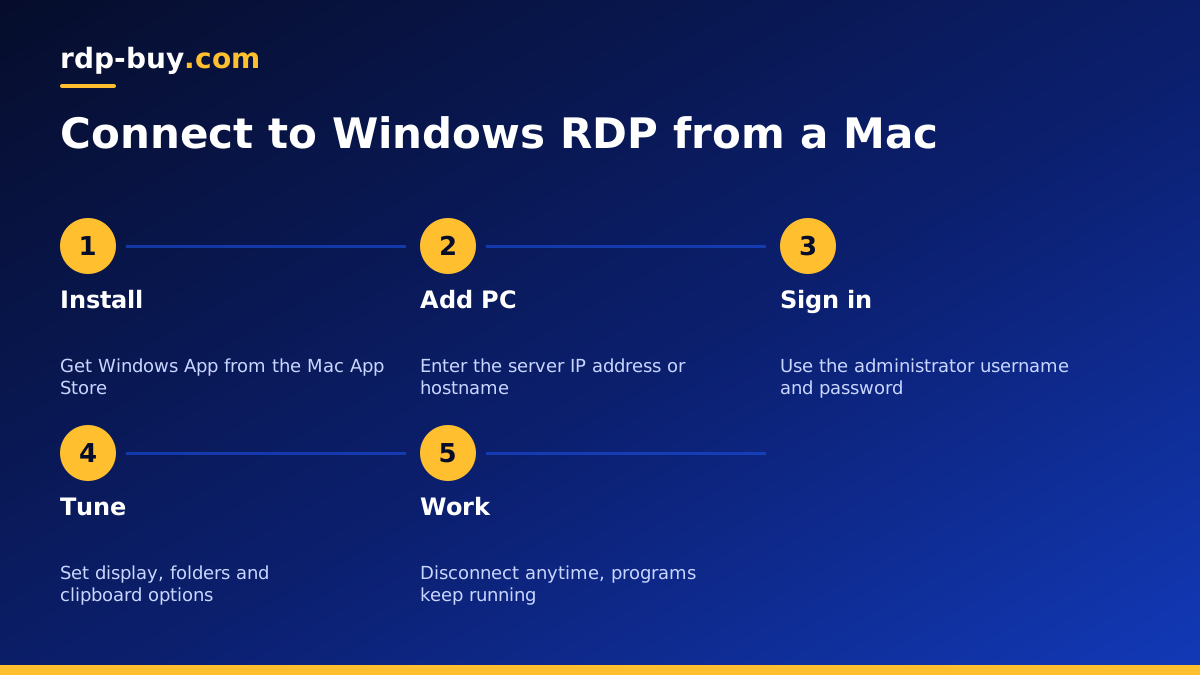
Once you have the details above, connecting takes only a few minutes. These steps use the Windows App from Microsoft, but other macOS clients follow the same pattern.
After the first connection, the saved PC appears as a tile in the app. Double click it to reconnect next time. If you work across several servers, give each one a clear friendly name so you never type commands into the wrong machine.
- Install Windows App from the Mac App Store and open it.
- Click the plus button and choose Add PC.
- In the PC name field, type the IP address or hostname of your Windows machine.
- Under credentials, add your username and password, or leave it set to ask each time if you share the Mac.
- Optionally set a friendly name, display options and folder redirection so you can move files between the Mac and the server.
- Save, then double click the new PC tile to connect.
- Accept the certificate prompt the first time. A new server usually presents a self-signed certificate, which is expected.
- When the Windows desktop appears, you are in. Closing the window disconnects you but leaves your programs running on the server.
Settings that make RDP on a Mac feel native
A few settings make a big difference to how comfortable Windows feels on a Mac screen.
Display. On a Retina screen, turn on the option to optimise for Retina displays only if text looks blurry. Higher resolutions send more screen data, so on a slower connection a standard resolution can feel smoother. You can also choose to start the session in full screen and use a separate macOS Space for it.
Keyboard. Mac and Windows keyboards differ. In the client, the Command key normally maps to the Windows key, and Control works as Control. Copy and paste uses Control plus C and V inside Windows. If you switch often, it helps to learn the few shortcuts that differ rather than remapping everything.
Folders and clipboard. Folder redirection makes a Mac folder appear inside Windows as a network drive. That is the simplest way to move installers, spreadsheets or exports in either direction. Clipboard sharing lets you copy text between the two systems.
Sound and microphone. You can play audio from the server on your Mac, or leave it on the server to save bandwidth. Microphone redirection is useful for calls but is not needed for most server work.
Common errors and how to fix them
Most connection problems come from a small set of causes. Work through them in order before assuming something is broken.
- The client cannot reach the PC. Check the IP address for typos, confirm the server is running, and make sure Remote Desktop is enabled on Windows. On a self-managed Windows Server, our guide on how to enable RDP on Windows Server walks through the setting and the firewall rule.
- Your credentials did not work. Make sure you are using the right account name. Some servers expect the format with the machine name first, followed by a backslash and the username. Check that Caps Lock is off.
- Certificate warning every time. This is normal for a self-signed certificate. You can choose to trust it permanently for that server once you are sure the address is correct.
- The session drops on Wi-Fi. Move closer to the router or use a wired connection. RDP reconnects on its own after short drops, and your programs keep running on the server.
- The screen looks small or blurry. Adjust the resolution and Retina settings in the PC's display options, then reconnect.
When a hosted Windows server is the better choice
If you only need Windows now and then, connecting to a spare office PC may be enough. A hosted server makes more sense when any of the following apply.
You need software that runs around the clock, such as MetaTrader, a scraping job, a bot, or an AI agent that must answer while your Mac sleeps. A hosted server keeps running whether your Mac is open, closed or travelling with you.
You want a fixed address. A dedicated IPv4 address is useful for allowlists, API keys that are tied to an IP, and services that flag logins from changing locations.
You want the server close to something. With 33 locations to choose from, you can place Windows near your broker, your customers or the APIs your tools call. The list of server locations shows every region.
You do not want to manage hardware. There is no PC to keep powered, patched and plugged in at home. You still have full administrator access to install whatever you need, and the Windows licence is included in Windows prices.
Choosing a Windows RDP plan for your Mac
Start from what you will run. Light office work, a browser and a single trading platform need modest resources. Several trading terminals, heavier spreadsheets, or development tools benefit from more memory and processor cores. If you are not sure, our guide on which RDP plan you need maps common workloads to plan sizes.
Next, pick a location near the services you use most, not necessarily near you. Your Mac only sends input and receives screen updates, while the server does all the talking to brokers, websites and APIs.
Then choose the billing period that suits you: monthly while you test, or half-yearly and yearly once the setup is stable. Servers are ready in minutes, and 24/7 support is available if the first connection gives you trouble. When you are ready, you can buy Windows RDP and connect from your Mac with the steps above. If you are still deciding between Windows and Linux, read RDP vs VPS first.
