 Sign in
Buy RDP for Customer Support: One Desktop for Your Help Team
Teams that buy RDP for customer support get a Windows desktop in the cloud where agents log in to the same tools, from the same location, with customer data kept off personal laptops. This guide explains when that helps and how to buy RDP sized for a help team.
Why support teams buy RDP
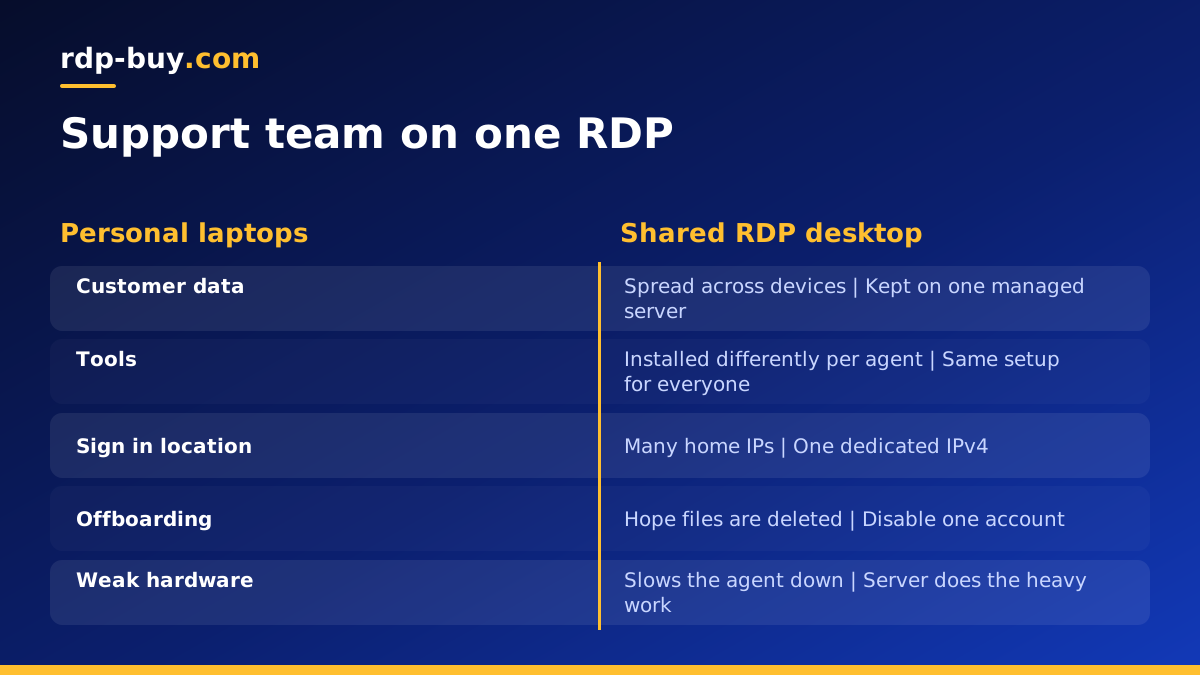
Customer support runs on a stack of tools: a help desk, a chat widget, an order system, a CRM, shared documents and often an old desktop app that only works on Windows. When agents work from home or from different countries, keeping all of that consistent on every personal laptop is hard. Logins break, browser extensions differ and sensitive customer details end up scattered across devices.
When you buy RDP, you move the work into one Windows server. Each agent connects with the Remote Desktop app and sees a familiar desktop with the right tools already installed. The laptop becomes a window into the work rather than the place where the work and the data live.
The server also has a dedicated IPv4 address, so platforms that watch for unusual sign ins see the team arriving from one known location. That reduces surprise security checks and makes it easy to allow list the office IP in tools that support it.
What a support desktop typically runs
Check with each software vendor that use on a remote server fits their licence terms, especially for desktop apps and voice tools.
- Help desk and ticketing tools in a browser, with saved team bookmarks.
- Live chat and messaging consoles that need to stay open during shifts.
- Order management, ecommerce back offices and payment dashboards with view only roles.
- Windows desktop software such as accounting, inventory or legacy line of business apps.
- Shared macros, canned responses and knowledge base documents.
- Softphone apps for voice support, where the provider supports remote desktop use.
Benefits for managers and agents
For managers, the biggest win is control. You decide which apps are installed, which sites are bookmarked and who has access. When an agent leaves, you disable one Windows account and their access to customer data ends, with nothing left behind on a personal machine.
For agents, the win is consistency. They get the same desktop whether they work from home, a co working space or while travelling, and a weak laptop no longer slows them down because the heavy lifting happens on the server. Shift handovers are simpler too: open tabs and notes can stay on the shared desktop for the next person when the team chooses to work that way.
How to size an RDP plan for a support team
Support work is mostly browser based, and browsers are memory hungry. Size the plan around how many agents log in at the same time, not the total team size.
- Memory is the key number. Each concurrent agent with a browser full of tabs and a chat console uses a meaningful share of RAM.
- CPU helps when many sessions are active and when desktop apps run reports.
- Storage rarely needs to be large for support, unless agents save attachments and exports locally.
- Several smaller servers or one larger one. Splitting teams across servers, for example by region or shift, limits the impact if one desktop needs a restart.
Setting up the support desktop
Full administrator access lets you apply all of these settings yourself. Our guide to admin RDP explains what that control covers.
- Connect as administrator using our guide on how to connect to your RDP server.
- Create a separate Windows user for every agent, with a strong password, and never share logins.
- Install the browsers and desktop apps the team needs, then remove anything unnecessary.
- Set up browser profiles per agent so sessions, cookies and saved passwords stay personal.
- Turn on Windows updates outside shift hours, and schedule a regular restart in a quiet period.
- Disable clipboard and drive redirection if your policy says customer data should not leave the server.
A rollout plan that keeps tickets moving
Moving a live support team onto a new desktop should not create a backlog. A staged rollout keeps customers from noticing the change.
Start with a pilot group of a few experienced agents. Have them work a normal shift on the RDP while the rest of the team carries on as before, and collect notes on missing bookmarks, slow tools or confusing settings. Fix those, then move the next group across. Keep the old way of working available for a short overlap, so anyone who hits a problem mid shift can switch back and keep answering customers.
Write a one page guide for agents that covers how to connect, what to do if the desktop feels slow, and who to contact if they cannot log in. Pin it in your team chat. Most first week questions are the same, and a short guide answers them before they become tickets of their own.
RDP or a Linux VPS for support tools?
If your help desk is a self hosted web app, it belongs on a Linux VPS, and agents can reach it from any browser. The Windows RDP is the right choice when agents need a shared desktop environment, Windows only software or a single, controlled place to work. Many teams use both: the help desk runs on a VPS and agents use it from the RDP. Our guide to RDP vs VPS explains the difference.
Protecting customer data on the server
Support agents see names, addresses, order histories and sometimes payment references. Treat the RDP as a sensitive system. Give each person the lowest role they need in every tool, avoid storing exports on the desktop longer than necessary, and use a password manager rather than shared text files for team logins.
Restrict Remote Desktop access with a firewall rule or a VPN where possible, and turn on account lockout after repeated failed sign ins. Review the list of Windows users monthly and remove anyone who no longer needs access. Our cheap RDP buying guide explains which features you should never cut, even on a tight budget.
Choosing a location for a support RDP
Pick the server location based on two things: where your agents are, so the desktop feels responsive, and where your customers and tools are, so platforms see sessions from a sensible region. A team supporting American customers often chooses a USA RDP, while a team serving Europe may pick a European city. We offer 33 server locations, so you can match the desktop to the market you serve.
Common mistakes when moving support to RDP
Each of these is easy to avoid with a short setup checklist and a monthly review.
- Sharing one Windows login across the whole team, which removes accountability.
- Undersizing memory, so the desktop slows down at the busiest point of a shift.
- Forgetting that some desktop apps need extra licences for remote use.
- Leaving Remote Desktop open to the whole internet with weak passwords.
- Running updates in the middle of a shift instead of a planned quiet window.
How to buy RDP for your support team
Open our Windows RDP plans, choose a location near your agents or customers, and pick memory based on how many agents will be logged in at once. The Windows licence is included in the price, servers are ready in minutes, and 24/7 support can help with first setup. If you are unsure which size to start with, our guide on which RDP plan you need walks through the choice.
Billing is monthly, half-yearly or yearly. You can buy RDP with a card, use PayPal or pay with crypto. Start with one team or one shift, gather feedback for a few weeks, then roll the desktop out to everyone.