 Sign in
USA RDP for Remote Teams and Virtual Assistants: How to Buy
A USA RDP for remote teams puts your staff and virtual assistants on a shared Windows desktop in America, wherever they actually live. Here is how to decide if you need one, keep client logins safe, and buy RDP in the USA at the right size for your team.
The problem a shared US desktop solves
Hiring remotely creates a practical problem. Your bookkeeper is in one country, your assistant is in another and your client is in Texas. Each person logs in to the same accounts from a different device and a different place. Files spread across personal laptops. Passwords travel through chat messages. When someone leaves, you are not sure what they still have.
A remote desktop gives the team one place to work. Instead of installing everything on each person's computer, you install it once on a Windows server in the United States. Team members connect, do their work there, and disconnect. The files and applications stay on the server, which you control.
That single change simplifies a lot. There is one consistent environment to manage, one US address that your services see, and one place to remove access when somebody moves on.
Who should consider a USA RDP for remote teams
This setup works best when several people need the same tools, or when you want the work to stay on a machine you own rather than on staff laptops.
- Agencies with offshore staff working on American client accounts.
- Business owners with virtual assistants who handle inbox, scheduling, listings or customer support.
- Bookkeeping and admin teams sharing desktop software that was never designed for the cloud.
- Support teams working in shifts across time zones, handing over from one person to the next.
- US companies hiring abroad who want company data kept off personal devices.
When you do not need one
If your team works entirely in web apps with proper user accounts, you may not need a shared desktop at all. Modern tools with individual logins already handle permissions and audit trails. Adding a remote desktop on top only creates another system to maintain.
Likewise, a remote desktop is not a way around any platform's rules. If a service restricts account sharing or requires each user to hold their own login, a shared server does not change that. Read the terms for the tools you rely on before you build a workflow around them. The right use of a team RDP is giving people a controlled workplace, not hiding who is doing the work.
Sizing a plan for several users
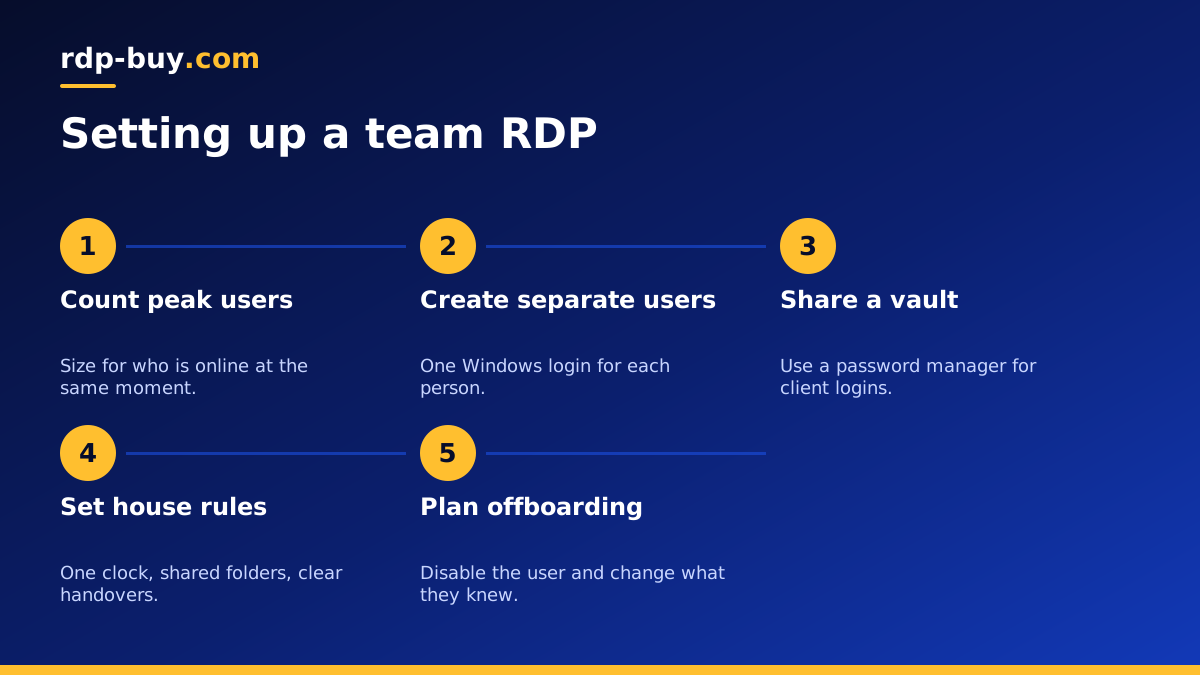
A plan for a team is sized differently from one for an individual, because every signed in person has their own browser, their own applications and their own memory use. Think about how many people will be connected at the same moment, not how many are on the payroll. Shift teams may need less than the head count suggests, since only some of them are online at any time.
Browsers usually matter most. Five assistants with many tabs each will use far more memory than a single desktop application. Go through a normal busy hour and count what is open for each person, then add a margin for updates and background tasks.
If the team is large, or if heavy programs run at the same time, two smaller servers may be easier to manage than one big one. It also means a problem on one machine affects only part of the team. Our guide to sharing a Windows server between multiple users covers how sessions work, including what Windows allows by default and when further licensing for remote sessions is needed. Check this before you plan for many simultaneous users.
Setting up separate users properly
The biggest mistake teams make is sharing one login. It feels easier on the first day, but you lose all accountability and you cannot remove one person without changing the password for everybody. With full admin access, you can do this properly from the beginning.
- Keep the administrator account for yourself, or for one trusted person.
- Create a separate standard Windows user for every team member.
- Add those users to the Remote Desktop Users group so that they can connect.
- Create a shared folder for team files, and give each person a private folder too.
- Do not give admin rights to people who do not need them, so that software cannot be installed without approval.
- Ask each person to set their own password, and keep them in a team password manager.
Protecting client logins and data
When your assistants work on client accounts, you are responsible for those credentials. Use a password manager with shared vaults so that people can log in without seeing or copying the password. Turn on two factor authentication wherever it is offered, and keep the recovery codes with the account owner rather than on the server.
You can also restrict what leaves the server. Windows settings allow you to turn off clipboard and drive redirection, which limits copying files to personal computers. This is not perfect protection, but it sets a clear expectation and suits sensitive work.
Keep a written offboarding routine. When someone leaves, disable their Windows user, change any passwords they knew, and review what they could access. Because everything sits in one place, this is a short job rather than a worrying week. Our RDP security checklist lists the wider steps worth taking.
Running day to day work across time zones
A shared server suits shift work because handovers become simple. The person finishing can leave notes in a shared document on the desktop, and the next person logs in to find the same files. Decide on one clock for the server, usually your clients' time zone, and use it in every schedule so nobody has to convert times.
Agree on a few house rules. Sign out at the end of a shift instead of leaving a session open, unless a program has to continue. Save work in the shared folder rather than the personal desktop. Schedule Windows updates for a quiet period and tell the team when they will happen, since a restart disconnects everyone. Backups matter too. With several people using one machine, accidental deletions become more likely, so keep regular copies somewhere off the server.
Getting a new team member connected
A short onboarding note saves hours of messages. Write down the server address, how to install the Remote Desktop app on the person's device, and where shared files live. Most people can follow the steps in how to connect to your RDP server, and Mac users can read about connecting from a Mac. Send the login details through your password manager rather than by email or chat.
Ask new starters to confirm that they can sign in, reach the shared folder and open each application before their first shift. That catches any permission gaps while there is still time to fix them, instead of during a client task.
Choosing the right US city and plan
Pick a city by asking who feels the distance. If most of your team sits in South Asia or the Philippines, the west coast is often a good first look. If they sit in Europe or Africa, try the east coast. Clients and services can override this if they are concentrated in one place. Our guide to choosing a US city covers this decision, and every location is on the locations page.
Start with a monthly plan for a working week, watch how the server copes in your busiest hour, then scale up or change billing once you are sure. When you are ready, compare the options for a US RDP server and pick your city at checkout. The Windows licence is included, each server has a dedicated IPv4 and full admin access, and it is ready in minutes, so you can invite your team the same day. You can pay by card, PayPal or crypto, and our support team is available 24/7 if your team hits a problem during their shift.
