 Sign in
Buy VPS for WordPress: Choosing a Plan and Moving Your Site
If your WordPress site has outgrown shared hosting, it may be time to buy a VPS for WordPress. This guide helps you confirm that, choose a plan and location, and move the site safely. When you are ready, you can buy VPS plans with root access and set everything up your way.
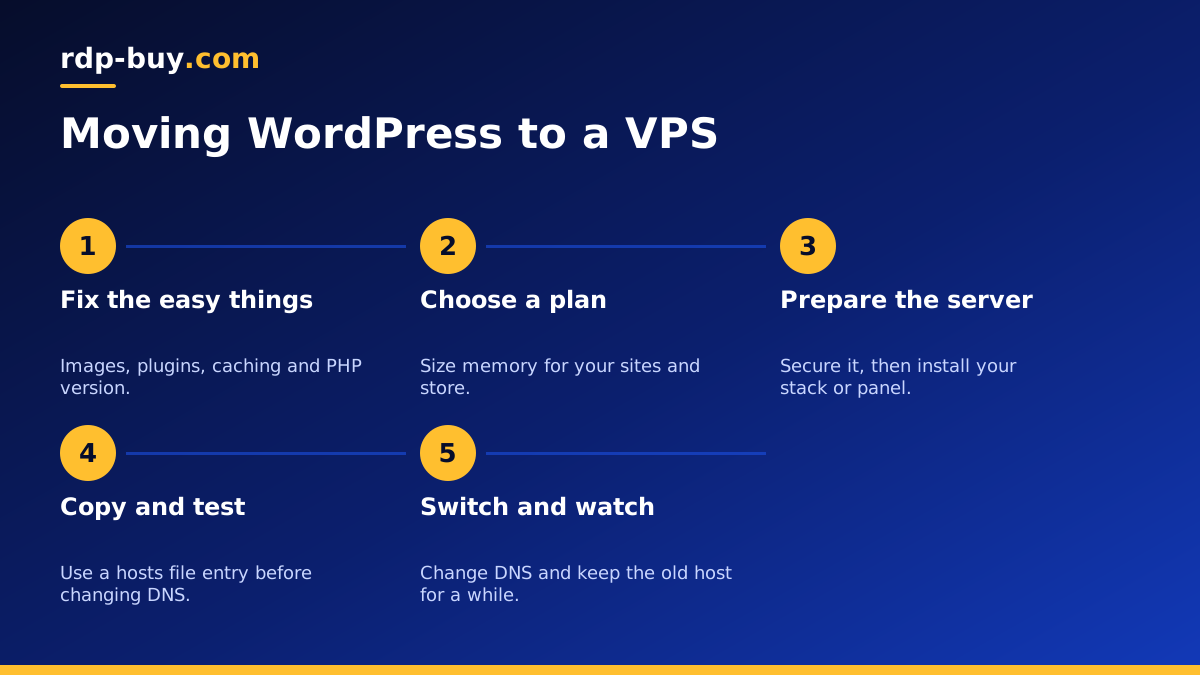
Signs your WordPress site has outgrown shared hosting
Shared hosting is a fine place to start. Many sites live there happily for years. The trouble begins when your site needs more than a small slice of a crowded server. Here are the signs to look for:
- The admin area feels slow, even when the public pages are cached.
- Your host warns you about resource limits or temporarily suspends the site.
- WooCommerce or a membership plugin has added logged in users whose pages cannot be fully cached.
- Traffic spikes cause errors, particularly after an email or a social post.
- You need something your host will not allow, such as a specific PHP setting, a background worker or a custom cache.
- You run many sites and want them under one roof you control.
Check these before you upgrade
A VPS is not a cure for every slow site. Before you spend money or time, rule out the usual suspects. Run a page speed test and look for oversized images and a page builder loading far too much. Deactivate plugins one by one on a staging copy to find any that are heavy. Add a good cache plugin if you do not have one. Check that you are on a current supported PHP version.
If the site is still slow after those steps, the hardware or the shared environment is probably the limit, and a VPS is the right next move. If you have not yet read a comparison, VPS hosting versus shared hosting sets out the differences.
What changes when you buy a VPS for WordPress
The main change is that you get your own environment with root access. No neighbouring site can use your share of memory, and you control PHP, the web server and the database. A dedicated IPv4 means your address is yours alone.
The cost of that control is responsibility. On shared hosting, somebody else updates the server, applies security patches and looks after backups. On a VPS, those jobs are yours, unless you install a control panel or hire someone. WordPress itself still needs updates just as it did before. Be honest about whether you want this work. If you enjoy it or have a developer, a VPS is an excellent home. If you have neither time nor interest, plan for help.
Choosing a plan and a location
WordPress sizing depends on how much of your traffic can be cached. A brochure site or blog with good page caching serves most visitors without touching PHP or the database, so a small plan goes a long way. A busy store is different, because carts, checkouts and account pages are dynamic and each visitor needs server resources.
Keep these points in mind:
- Memory first: MySQL or MariaDB, PHP workers and an object cache all live in memory.
- Allow for WooCommerce: stores and membership sites need noticeably more than blogs.
- Count your sites: several small sites on one server share the same memory.
- Watch disk: media libraries and local backups grow, so leave room.
- Choose close to your readers: check your analytics for where visitors are, then compare the server locations.
Control panel or manual setup
You have two sensible routes. A hosting control panel gives you a web dashboard for sites, databases, SSL and email. It uses some memory, and some panels carry their own licence fee, but it brings the VPS closer to what you are used to. That makes it a good choice for anyone new to Linux.
The manual route means installing the web server, PHP and the database yourself, for example Nginx, PHP FPM and MariaDB. This keeps the server lean and teaches you how it all fits together. A third option is containers: you can run WordPress with Docker, which is tidy for developers, and the Docker VPS page covers that path.
Whichever route you take, begin with the basics in our first steps on a new server guide, including updates, a normal user, SSH keys and a firewall.
How to move your WordPress site to the VPS
Moving a site is less risky than it sounds, because the old site keeps running until you change DNS. Take your time and test everything first.
- Take a full backup of your files and database, and download it to your own computer.
- Lower your domain's DNS time to live a day before the move.
- Create the site and an empty database on the VPS.
- Copy your files and import the database, by hand or with a migration plugin.
- Update wp-config.php with the new database details.
- Test using a hosts file entry, so that your computer sees the new server before anyone else does.
- Check the login, the forms, the checkout and the images.
- Issue an SSL certificate, then point your DNS at the new IP address.
- Keep the old hosting for a while, in case you need to go back.
Speed and security after the move
Your new server gives you tools that shared hosting may not. Turn on PHP OPcache. Add Redis as an object cache, which helps logged in users and stores in particular. Keep page caching for anonymous visitors. Replace WP Cron with a real system cron job, so that scheduled tasks run on time rather than when someone happens to visit.
On the security side, keep WordPress, themes and plugins updated, and delete anything that is not in use. Limit login attempts and use two factor authentication for administrators. Give files sensible ownership and permissions, so that a compromised plugin cannot change everything. Keep automatic backups off the server, because a backup held on the machine that failed is no backup at all. Our VPS backup guide shows you how, and the maintenance routine gives you a schedule to follow.
One thing to think about is email. Sending from your own server often lands in spam folders, so most site owners use a transactional email service for WooCommerce receipts and password resets.
Measure again once the site has settled. Compare your page speed results and the feel of the admin area with your notes from before the move. If memory is often close to full, or your database is struggling during busy hours, that is your signal to move up a plan. If the server has plenty of room, leave it alone and enjoy the headroom.
Choosing your WordPress VPS plan
Before you order, make sure you have fixed the easy problems, chosen who will maintain the server, and looked at where your visitors are. A cached blog can begin on a small plan, while a store needs more memory, and you can move up once you see real numbers. Monthly billing is handy during migration, since you may want to change the size once the site has settled.
When you are ready, compare the plans and buy your VPS hosting at the location closest to your readers. If your audience is American, the USA VPS page and our guide to hosting a website for American visitors are good next stops. If budget is the main concern, see cheap VPS. Every server comes with root access, a dedicated IPv4 and 24/7 support, and is ready in minutes, so you can start the move today. You can pay by card, PayPal or crypto.
