 Sign in
Buy RDP for Small Business: Move Your Office to One Desktop
When you buy RDP for a small business, you swap a dusty office PC for a Windows desktop your staff can reach from anywhere. This guide explains what to move, what to leave alone, and how to buy RDP without disrupting the way your office runs.
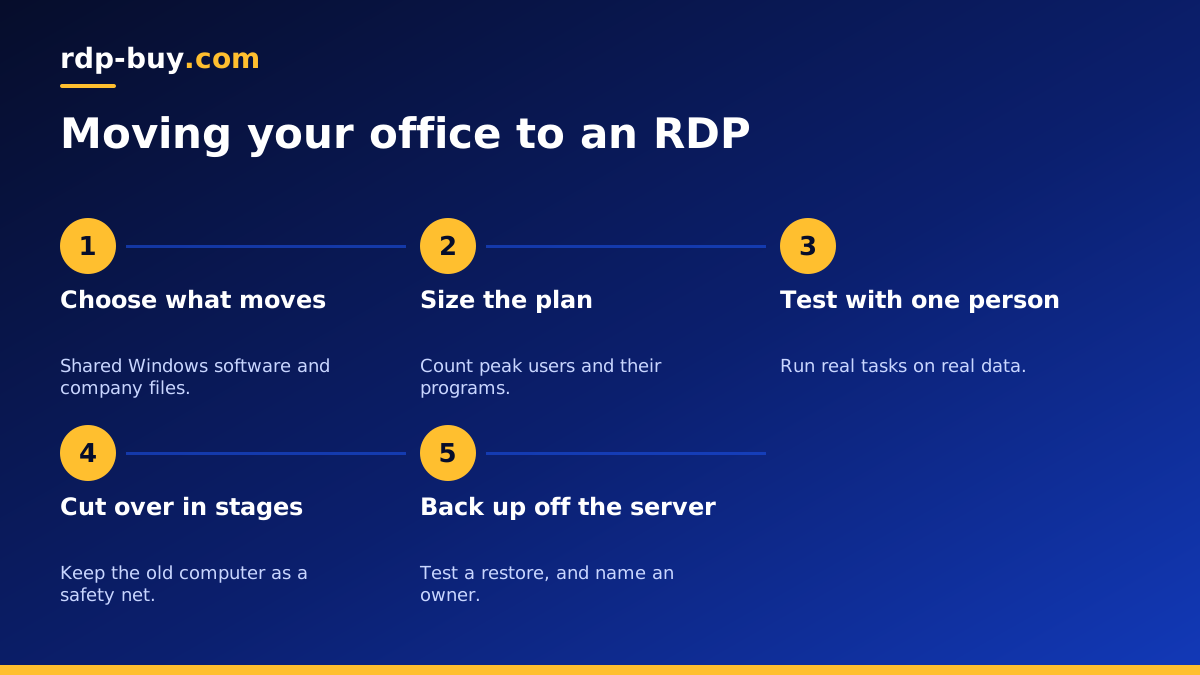
Why small businesses move to a remote desktop
Many small businesses still depend on one computer in the back office. It runs the billing software, holds the shared folder, and everybody knows not to switch it off. That setup works until the machine fails, the office closes, or someone needs a file from home on a Sunday.
A Windows RDP moves that role to a server you rent. Your software, files and settings live on a machine that stays on, and anyone you authorise can reach it from a laptop, a tablet or a home computer. Staff see a familiar Windows desktop, so there is little to learn, and you no longer own the hardware that can fail.
For a business without an IT department, this is often the simplest way to get a central system. You do not need to rewrite anything or replace software your team already knows.
What to move to the server first
A good candidate is anything that several people need, that only runs on Windows, or that has to stay on all day.
- Desktop accounting and billing software that was never built for the browser. See our guide to RDP for accounting software.
- Shared company files that are currently stuck on one machine or scattered across laptops.
- Line of business programs such as inventory, point of sale back office or industry specific tools.
- Scheduled jobs such as reports that need a computer to be switched on at a certain time.
- Older software that needs Windows and would not survive moving to a new laptop.
What should stay where it is
Not everything benefits from moving. Email and calendars are usually better with a dedicated service. Video calls work poorly through a remote desktop, because sound and video have to travel through the session. Keep calls on your local device.
Software tied to physical hardware needs care too. Receipt printers, card terminals, scanners and USB licence keys may not work through a remote session without extra setup. Test each device before you commit. Check your software licences as well. Some desktop programs restrict remote use or charge per user, so ask your vendor what applies to you.
If your team only needs simple document sharing, a cloud storage service may be enough. A remote desktop earns its place when you need a real Windows machine, not just a place for files.
How to work out your plan size
Sizing starts with people. Count how many staff will be connected at the busiest moment of the day, not how many you employ. Then consider what they use. Accounting software, a browser and a spreadsheet are modest on their own, but they add up across several users. Memory is the most important number, followed by disk for your files and any database.
Our guide to which RDP plan you need walks through this in more detail. Be honest about growth too: a business adding staff next quarter should allow for it, although you can also start with what you need today and move up later.
When more than a couple of people connect at once, check how Windows handles simultaneous sessions, because additional licensing for remote sessions can apply. Our guide to multiple users on one server explains this, and it is worth reading before you promise the whole office a login.
Picking a location for your business
Choose a location near your staff, since they will use the desktop all day and the feeling of responsiveness matters. A business in London should look at the UK, and one in Mumbai should look at India. With 33 locations, there is normally something near you, and the locations page lists them all. If your team is spread out, choose the place that suits the largest group.
If you sell into another country, a desktop there may help with tasks that need a local presence. Our USA RDP, UK RDP and Germany RDP pages cover some common choices. Also check any legal requirements that affect where your customer and financial data can be stored, because they may decide this for you.
Rolling it out without stopping the office
Avoid a big switch on a busy Monday. Move in stages, and keep the old computer available until the new setup has proven itself.
- Order the server and secure it first, with a strong password and Windows updates.
- Install your main software, and contact your vendor if you need to transfer a licence.
- Copy a recent set of data across and test it with one person.
- Create a Windows user for each staff member, with suitable permissions.
- Run a trial for a few days on real tasks, ideally a quiet week.
- Choose a cutover day, stop work on the old machine, copy the final data, and switch.
- Keep the old computer untouched for a while, as a safety net.
Security and backups for business data
Moving your data to a server means your login is now the front door, so make it a strong one. Use long, unique passwords for each staff member, and keep the admin account to one trusted person. Remove accounts immediately when someone leaves. Our RDP security checklist includes further steps, such as limiting which addresses can connect.
Backups need a clear owner. A server protects you from a broken office PC, but not from someone deleting the wrong folder, or from ransomware. Schedule automatic copies of company data to a location outside the server, and test a restore. A backup you have never restored is only a hope. Decide who checks it, and put a reminder in the calendar.
Helping staff adjust to the new setup
Technology changes fail more often because of habits than because of software. Spend a little time showing people what is different. The two big points are simple: save work on the server rather than on the local computer, and close the session properly at the end of the day. A one page note with the connection steps and a named person to ask will prevent most of the confusion. The guide on how to use Windows RDP is a helpful introduction for anyone new to it.
Also agree on working rules early. Decide who may install software, when updates and restarts happen, and how staff report a problem. Staff working from home should keep their own devices updated and lock their screens, because a remote desktop is only as safe as the computer used to reach it. Small rules like these keep a shared machine tidy as your business grows, and they save you from having to untangle a messy desktop a year from now.
What to check before you buy
Before placing an order, run through a short list. Confirm that your important software is allowed to run on a remote server. List any hardware that needs to work with it. Agree who will be the administrator. Decide where backups will go. Then choose your billing. Monthly billing is sensible during the trial, and half-yearly or yearly billing suits you once the business depends on it.
When you are ready, compare the plans and buy a Windows RDP for your chosen location. The Windows licence is included in the price, you get full admin access and a dedicated IPv4, and servers are ready in minutes. You can pay by card, PayPal or crypto, and our support team is available 24/7. For a side by side with the other main option, read our RDP vs VPS guide.
