 Sign in
RDP for Accounting Software: Run Desktop Books From Anywhere
Many businesses and bookkeepers still rely on Windows desktop accounting programs, and those programs expect to live on one office PC. A Windows RDP moves them to a server you can reach from anywhere, for the whole team. This guide explains when it makes sense to buy RDP for accounting, how to set it up safely and how to size it.
Why accountants and bookkeepers use RDP
Desktop accounting software is powerful, but it was built for a world where everyone sat in the same office. When the company file lives on one PC, working from home, sharing with an outside bookkeeper or getting through month end while travelling all become awkward.
A Windows RDP is a Windows computer in a data centre that you open with the Remote Desktop app. Install your accounting program there and everyone who needs it logs in to the same server, from any laptop, wherever they are. The company file stays in one place instead of being copied between machines, which reduces the risk of two people editing different versions.
If you already know your software runs on Windows, the Windows RDP plans are the natural starting point. The rest of this guide helps you decide on the details.
Is it right for your software and licence
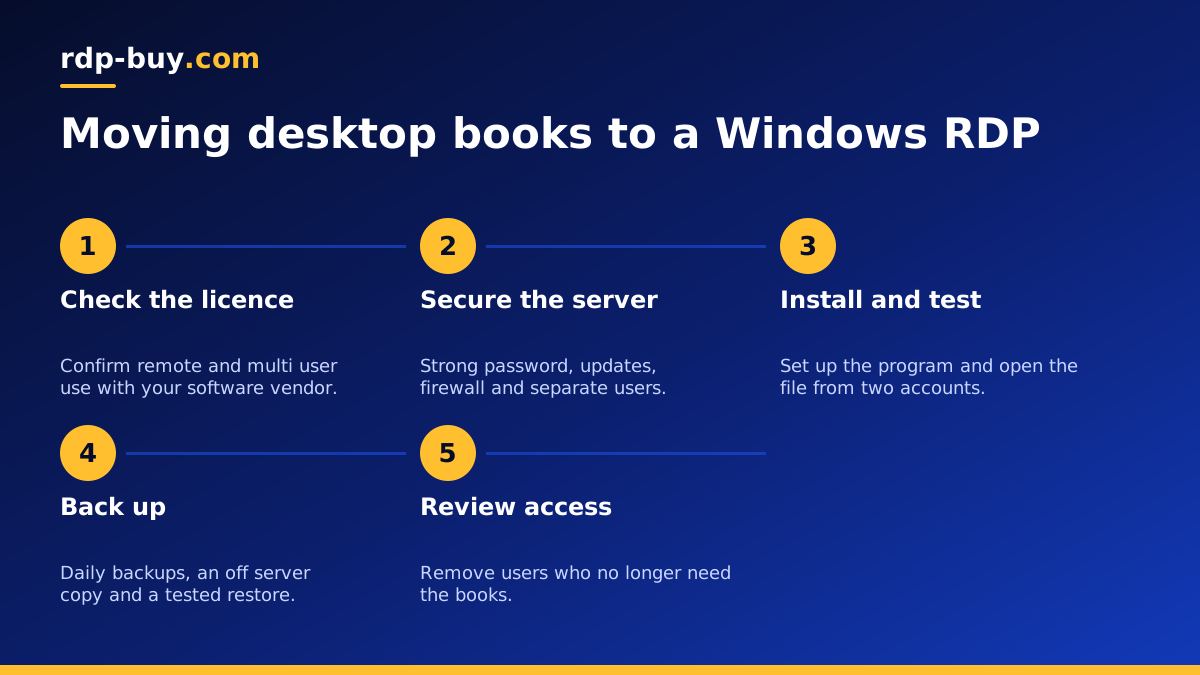
Before you move anything, check two things with your software vendor. First, that the program supports running on a Windows server or a remote desktop, and which Windows versions it needs. Second, what your licence allows, because some licences limit how many users may work at once or how the program may be used over remote access. Following the vendor's terms keeps you safe at audit time.
The Windows licence for the server itself is included in Windows prices on our plans, so you only need to think about the licence for your accounting software.
Benefits for a small accounting team
Moving desktop books to a server brings a set of practical gains:
- One company file, one location. No more emailing backups or copying files between computers.
- Work from anywhere. Staff, partners and outside bookkeepers connect from home or the office.
- The office PC can retire. No single machine under a desk holds the whole business.
- Long tasks keep running. Reports, imports and backups continue after you disconnect.
- Separate logins. Each person has their own Windows user, so access can be granted and removed cleanly.
- Help when you need it. Support is available 24/7, which matters during busy filing periods.
Setting up your accounting RDP securely
Financial data needs more care than most workloads, so treat security as part of the setup rather than an afterthought.
Once the server is ready, which takes minutes after ordering, connect with the Remote Desktop app. Our guide on how to connect to your RDP server covers every device. Change the administrator password to a long, unique passphrase, run Windows Update and restart.
Create a separate Windows user for each person, with standard rights. Keep the administrator account for yourself or your IT person only. Restrict remote desktop access to the people who need it, and consider limiting connections to known IP addresses using the Windows firewall. Our guide to RDP server best practices walks through these steps in detail.
Install your accounting software following the vendor's instructions for multi user or server setups, then move your company file onto the server. Test opening it from two user accounts so you know sharing works as expected before the whole team switches over.
Backups are not optional
Your books are among the most important files your business has. Plan backups on three levels:
- The accounting program's own backup feature, scheduled daily, saving to a folder on the server.
- An off server copy of those backups to cloud storage or another location you control, so a problem with the server never takes the only copy.
- A tested restore. Every so often, restore a backup to a test folder and open it, so you know the backups work.
- Retention. Keep older backups for long enough to cover your record keeping obligations.
Choosing a location
Pick a location close to where your team works so the desktop feels responsive. We have 33 server locations, including several cities in the United States, the UK, Germany, India and Singapore. If your firm is in the US, a USA RDP keeps the server near your staff; for UK teams, a UK RDP does the same. Also consider any rules your business follows about where financial data is stored, and choose a location that meets them.
Sizing the server
Accounting programs are not usually heavy on their own, but each logged in user runs their own copy, and many people also keep a browser, email and spreadsheets open. Size the plan for the number of people working at the same time, not the total number of users. A sole bookkeeper fits a smaller plan, while a team working together at month end needs more memory and CPU. Our guide on which RDP plan you need helps with the estimate.
If you need admin rights for installing and updating the software, every plan includes full administrator access. You may also find the admin RDP page useful.
Daily habits that keep the books safe
Ask everyone to disconnect by closing the remote desktop window when they step away briefly, and to close the company file properly and sign out at the end of the day so nothing is left locked. Set Windows Update active hours to cover your working day so the server does not restart during month end. Review the list of users every month and remove anyone who no longer needs access, especially outside contractors.
Turn on two factor authentication for the email accounts and bank feeds connected to your accounting software, and never save passwords in files on the desktop. A team password manager is a far safer place for them. Small habits like these protect your data far more than any single setting.
Picking your plan
Count the people who will work in the books at the same time, check your software and licence requirements, and choose the location closest to your team. Billing can be monthly, half-yearly or yearly, so you can trial the setup before committing. You can pay by card, PayPal or crypto, and card or PayPal payments, through buying RDP with a card or PayPal, keep the expense easy to record in your own books.
When you are ready, compare the RDP server plans, pick your location and size, and your Windows server will be ready in minutes.
