 Sign in
Windows RDP vs Parsec: Which Remote Desktop Fits Your Server?
Windows RDP and Parsec both let you control a remote Windows machine, but they were built for very different jobs. This guide explains how each one works, where each one shines, and why a cloud Windows RDP server is almost always reached with RDP rather than Parsec.
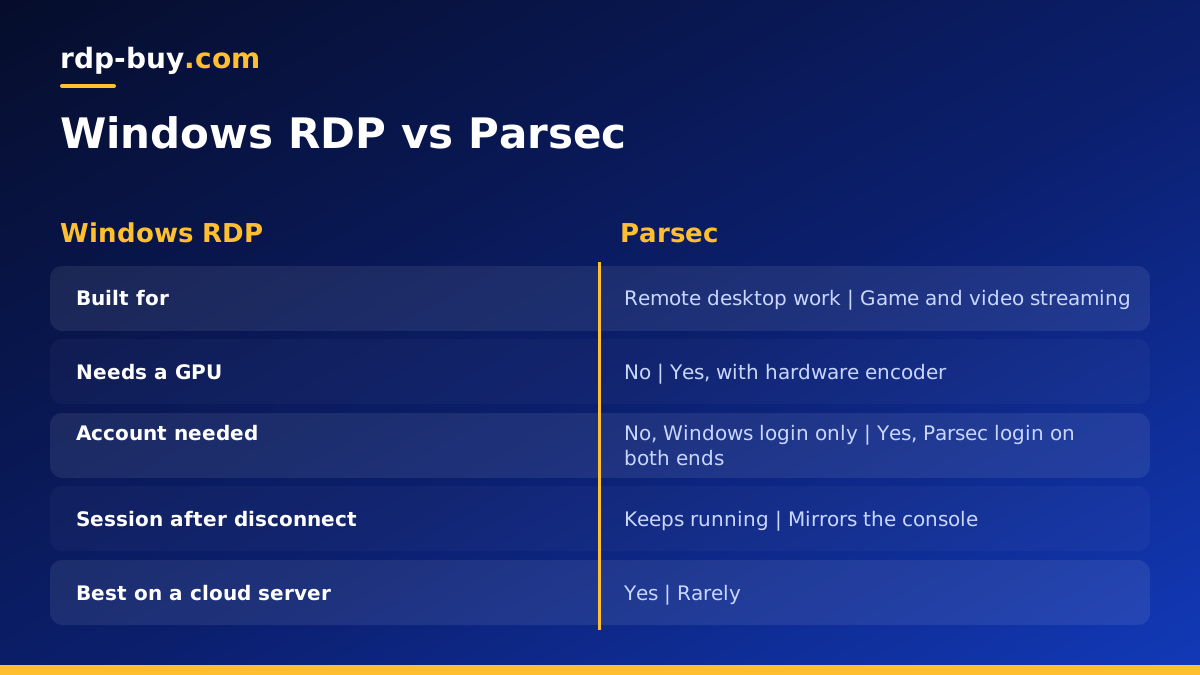
The short answer
Use Windows RDP when you want to work on a remote Windows computer or server: running applications, trading platforms, browsers, automation tools or AI agents. It is built into Windows, needs no extra account, works without a graphics card, and handles clipboard, file and printer redirection out of the box.
Use Parsec when you want to stream a fast moving screen, such as a game or video editing timeline, from a machine that has a graphics card with a hardware video encoder. Parsec is tuned for smooth motion, but it depends on that encoder and on a Parsec account at both ends.
For a typical RDP server in a data centre, which has no consumer graphics card, RDP is the right tool. Parsec becomes interesting only when you control a machine with a suitable GPU.
How Windows RDP works
Remote Desktop Protocol is Microsoft's own remote access protocol. When you connect, Windows creates a session for your user and sends the screen to your client. Instead of streaming raw video all the time, RDP sends a mix of drawing instructions and compressed screen updates, which is very efficient for desktop work where most of the screen stays still. Modern versions can switch to video style encoding for areas that change quickly.
Because RDP is part of Windows, there is nothing to install on the server side. You enable Remote Desktop, allow your user, and connect with the built-in Remote Desktop Connection app on Windows or the Windows App on macOS, iOS and Android. Our guide on how to connect to your RDP server shows each step.
RDP also carries much more than the picture. It can redirect your clipboard, local drives, printers, audio and smart cards. On Windows Server, several users can hold separate sessions on the same machine. These features matter far more for everyday work than raw frame smoothness.
How Parsec works
Parsec started as a tool for playing games remotely. The host application captures the screen, encodes it as video with the graphics card's hardware encoder, and streams it to the client, while sending keyboard, mouse and controller input back. The design goal is low delay and smooth motion, which is exactly what games and creative tools need.
To use Parsec, you install the Parsec app on the host and on the client and sign in to a Parsec account on both. Parsec's service helps the two ends find each other, then the stream usually travels directly between them. Hosting is supported on Windows and macOS, and clients are available for more platforms.
The catch is the encoder. Parsec expects a graphics card with hardware video encoding on the host. Most virtual servers, including standard Windows RDP plans, do not have one. Without it, Parsec either refuses to host or performs poorly, which is why it is rarely the right choice for a rented cloud desktop.
Windows RDP vs Parsec side by side
Here is how the two compare on the points that usually decide the choice.
- Setup: RDP is built into Windows and needs no account. Parsec needs an app and a Parsec login on both ends.
- Hardware: RDP runs on any Windows machine, including servers with no graphics card. Parsec needs a GPU with a hardware encoder on the host.
- Best at: RDP excels at desktop applications, office work, trading and automation. Parsec excels at games, fast motion and colour sensitive creative work.
- Multiple users: RDP on Windows Server supports separate sessions per user. Parsec shares one screen, which suits co-op play but not separate workspaces.
- Redirection: RDP redirects clipboard, drives, printers and audio. Parsec focuses on screen, audio, input and controllers.
- Bandwidth use: RDP is light when the screen is mostly still. Parsec streams video continuously, so it uses more bandwidth all the time.
Which one should you use on a cloud server?
If you rent a Windows server to keep something running around the clock, RDP is the tool you want. Common examples include MetaTrader terminals on a forex RDP, browser based work that must stay logged in, scheduled scripts, scraping and data tools, and AI agents that need a real Windows desktop. All of these are mostly static screens where RDP is efficient, and none of them need a graphics card.
There is also the question of what happens when you disconnect. With RDP, closing the window leaves your session running on the server, so your programs keep working while your laptop is off. That is the main reason people rent a remote desktop in the first place. Parsec mirrors the host's console, so it is designed around a machine that someone sits at or that runs a game.
Parsec is the better fit for a personal gaming PC you want to play from elsewhere, or a GPU workstation used for video editing or 3D work. In those cases the hardware encoder is there, and the smooth stream is worth the extra setup.
Can you use both together?
Yes, on a machine that has a suitable GPU. Some people use RDP for administration, updates and file transfers, and switch to Parsec only for sessions that need smooth motion. Be aware that an RDP session and the console are separate on Windows, so Parsec sees the console screen while RDP has its own session. If you log in through RDP and then close it, Windows may lock the console, and you would need to return the session to the console before Parsec shows a usable desktop.
On a server without a GPU there is no benefit to installing Parsec. Stay with RDP and tune it instead: lower the colour depth on slow connections, turn off desktop wallpaper and visual effects in the client's experience settings, and use a server location close to you.
Tips for a smooth RDP experience
Most complaints about RDP feeling slow come down to distance and settings rather than the protocol itself. These steps help on any connection.
- Pick a server location near you or near the services your software talks to. rdp-buy.com has 33 server locations to choose from.
- In the Remote Desktop client, set the experience option to detect connection quality automatically.
- Disable persistent bitmap caching only if you see display glitches, otherwise leave it on.
- Use a wired connection or a strong Wi-Fi signal on your own side.
- Keep the server updated and avoid running heavy animations or video in the remote session unless you need them.
- Protect the server with strong passwords and the steps in our RDP best practices checklist.
Getting a Windows RDP server
If your goal is a Windows desktop that stays on when your own computer is off, a cloud RDP server is the straightforward route. When you buy RDP from rdp-buy.com, the Windows licence is included in the price, you get full administrator access and a dedicated IPv4 address, and the server is ready in minutes. Billing can be monthly, half-yearly or yearly, and 24/7 support is there if you get stuck.
Not sure about the size? Our guide on which RDP plan you need matches common workloads to plan sizes. If you later need graphics acceleration for Parsec style streaming, that is a different class of hardware, and it is worth planning separately.
