 Sign in
Claude Code VSCode Server: Remote Development on a VPS
Running a Claude Code VSCode server setup means your editor stays on your laptop while the code and the agent live on a remote machine. This guide shows how to connect the two, keep long tasks alive, and choose a server for your AI agents.
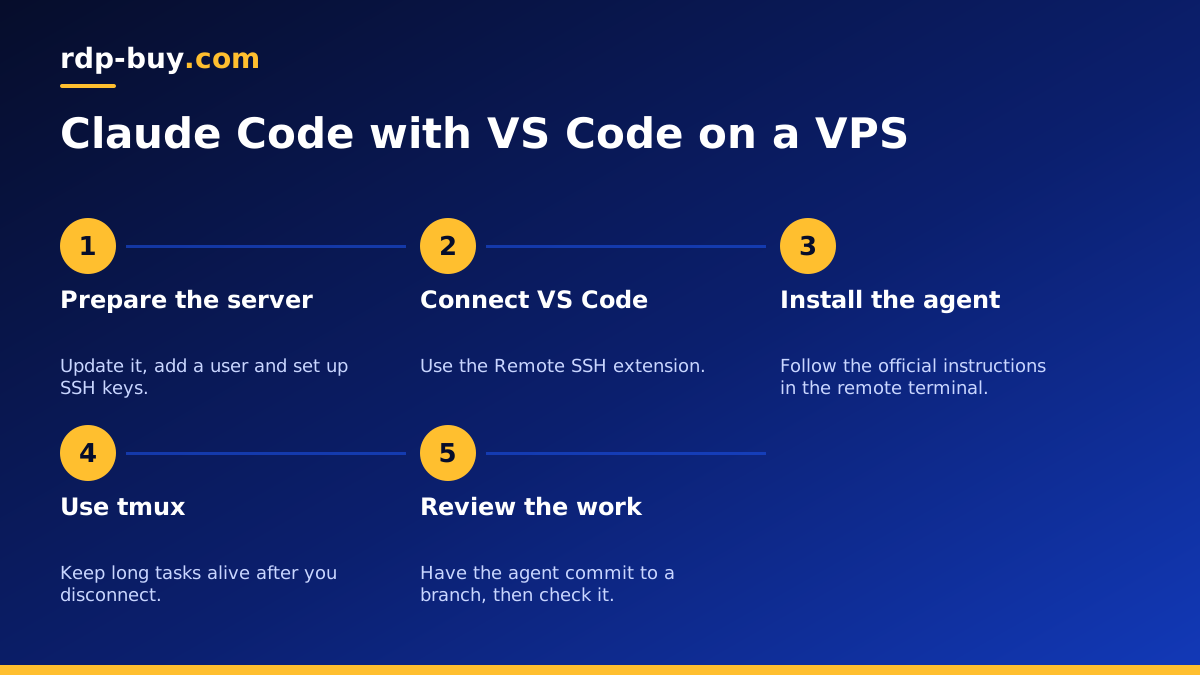
What a Claude Code VSCode server setup means
Claude Code (by Anthropic) is a coding agent that works in your terminal and can also be used from inside Visual Studio Code. Normally, both the editor and the agent run on the computer in front of you. In a remote setup, you split them. VS Code keeps showing its window on your laptop, but files, terminals and the agent all run on a server.
The part that makes this possible is the VS Code Remote SSH extension. When you connect, VS Code installs a small server component on the remote machine. Your editor then behaves as if the remote folder were local. You open files, use the integrated terminal and run extensions, while the actual work happens on the VPS.
Nothing here means rdp-buy.com is connected with Anthropic or Microsoft. A VPS is simply a Linux machine, and you install these tools on it the same way you would on any other computer.
Why run your coding agent on a server
The main reason is that agent tasks can run for a long time. If a large refactor or test run is happening on your laptop, closing the lid interrupts it. On a server, the task continues while you travel, sleep or switch devices. You come back later and read what happened.
The second reason is isolation. An agent that can run commands and edit files should not sit beside your personal documents and logged in browser. A VPS gives it a separate environment, which limits the damage if something goes wrong.
The third is a consistent environment. Everyone on a small team can connect to the same kind of setup, and you avoid laptop differences. If you want a broader comparison of the two approaches, read Claude Code on a VPS versus a laptop.
What you need before you begin
The setup is simple, but it helps to have everything ready before you start.
- A Linux VPS with root access. A VPS for Claude Code is the direct option.
- Visual Studio Code on your own computer.
- An SSH key pair. If you do not have one, create it with ssh-keygen.
- Access to Claude Code through your Anthropic account or an API key.
- A Git repository that holds your project, so that the code is never only on one machine.
Step by step: connect VS Code to your VPS
Follow these steps in order. Our VS Code Remote SSH guide goes deeper on the connection part if you get stuck.
- Log in over SSH, update the system, and create a normal user rather than working as root.
- Copy your public key to that user, then confirm that you can log in without a password.
- Add the server to your SSH config file with a short name, such as dev-box.
- In VS Code, install the Remote SSH extension from the Extensions panel.
- Open the Command Palette, choose Connect to Host, and select dev-box.
- Wait for VS Code to set up its server component, then open your project folder.
- In the integrated terminal, install Node.js and Claude Code using the current instructions in the official docs on anthropic.com.
- Run claude in your project folder and sign in when prompted.
- Install the Claude Code extension into the remote side of VS Code if you prefer using it from the editor.
Keeping long sessions alive
This is the part most guides skip. A terminal inside VS Code belongs to your connection. If the connection drops for long enough, the process inside it may be stopped too. For short tasks that does not matter, but for a long agent run it does.
The fix is a terminal multiplexer. Install tmux, start a session with tmux new -s agent, and run Claude Code inside it. Your work now belongs to the server rather than your connection. You can detach, close the laptop, and later reconnect with tmux attach -t agent to find it exactly where it was. Our guide to keeping an agent running covers restarts and logs if you want to take this further.
Getting into the habit of starting every long task inside tmux takes almost no effort and saves you from losing hours of work to a dropped connection.
Protecting keys and code on the server
A server with an agent on it deserves the same care as any production machine, and arguably more, since the agent can run commands. Turn off password logins, and allow only SSH keys. Enable a firewall that exposes only SSH. If your project runs a development server, reach it through VS Code's port forwarding rather than opening the port to the internet.
Give the agent narrow access. Use a Git token limited to the repositories it needs, and keep production credentials off this machine completely. Keep Claude Code's permission prompts on for commands you have not reviewed, instead of approving everything. Your dedicated IPv4 also lets you add the server to allowlists, so that the services it talks to can refuse other addresses.
Commit to a branch and review the agent's work before it merges. The agent is fast, but you remain responsible for what ships.
Common problems and quick fixes
Most issues with this setup come down to a few causes.
- VS Code cannot connect: test the same login from a plain terminal first. If that fails, the problem is SSH and not VS Code.
- The remote server component fails to start: check for a full disk, then remove the .vscode-server folder and reconnect.
- The agent disappeared overnight: it was probably started outside tmux, so your connection took it down.
- The server feels slow: indexing large folders uses memory, so exclude build output and dependency folders from file watching.
- Login for Claude Code will not complete: copy the link it prints into your local browser, since the server has no browser.
A simple daily workflow
Once the pieces are in place, the routine is short. Open VS Code and connect to your host. Attach to your tmux session in the integrated terminal, or start a new one. Pull the latest code, create a branch for the task, and give the agent a clear brief with the tests it should run. Then you can step away.
When you come back, reattach and read what happened. Review the diff in VS Code's source control panel, which works normally over the remote connection. Run the tests again yourself, push the branch, and open a pull request. Because the repository is the source of truth, you can do the same thing from a different computer tomorrow. All you need is your SSH key and VS Code. You can check progress from a phone with any SSH app too, which is useful for a quick look at a long run.
Choosing a server for this setup
The agent itself is light, because the model runs on Anthropic's side. Your real load comes from what the agent starts: test suites, builds, databases and containers. Size the plan for those, and allow memory for the VS Code server component as well. Pick a location near you if you do a lot of interactive editing, because that makes the editor feel more responsive.
You can browse our AI agent hosting options to compare plans, or read about choosing the best VPS for Claude Code. Every Linux plan comes with root access, a dedicated IPv4 and 24/7 support, and is ready in minutes, so your remote editor can be working within the hour. If you prefer a full desktop, see Claude Code on Windows RDP.
