 Sign in
USA RDP for Forex Trading: Running MT5 on a US Desktop
A USA RDP for forex gives your trading terminal a Windows home in the United States that stays on when your computer does not. This guide explains when a US location helps, how to set up MT5, and how to choose a US RDP server that suits your strategy.
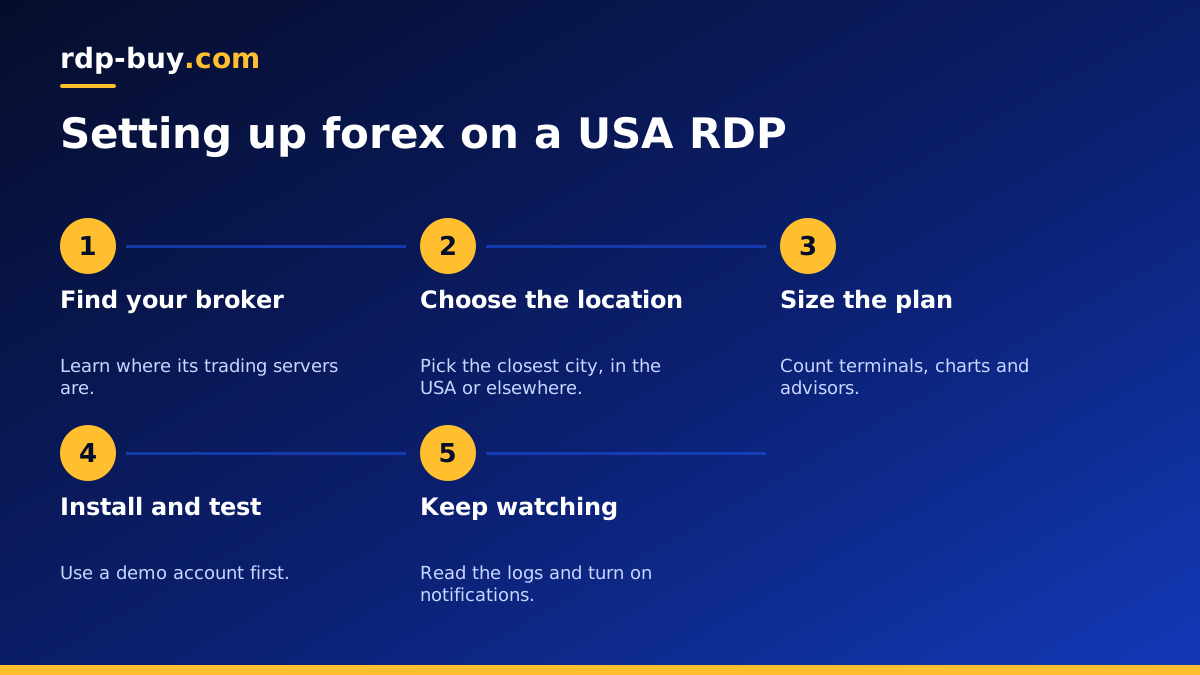
Why traders run MT5 on a remote desktop
Most retail forex platforms, including MetaTrader 4 and MetaTrader 5, are Windows programs that have to stay open to do their job. An expert advisor can only manage trades while the terminal is running and connected. If your home computer sleeps, restarts for an update or loses its connection, your automated strategy stops watching the market.
A remote desktop moves the terminal to a machine that stays on. You log in from a laptop or phone to check on things, then disconnect, and the terminal carries on. You have not changed your strategy, only where it lives.
This guide does not offer trading advice, and a server cannot make a strategy profitable. Forex trading carries real risk of loss. What a server can do is remove one avoidable problem: a terminal that was closed when it should have been open.
When a USA RDP for forex makes sense
A server location should follow your broker. Before choosing a city, find out where your broker's trading servers are. Your broker's support team can tell you, and some list the information in their help pages. The closer your terminal is to that server, the shorter the round trip for each order.
A US desktop tends to suit these traders:
- Traders whose broker servers are in the United States, since this is the strongest reason of all.
- Traders focused on the New York session who want their terminal and their charts close to American market activity.
- People who also use US based platforms and data tools on the same desktop.
- Traders living in the Americas who want a responsive desktop when they log in by hand.
When a US server is not the right choice
If your broker's servers are in Europe or Asia, a US desktop adds distance rather than removing it. In that case a location nearer the broker is the better buy, even if you live in America, because the terminal is what talks to the broker. Your own screen only needs to be good enough for you to check on it.
Likewise, a slow manual strategy that holds trades for days does not gain much from small differences in distance. For those traders the value of a server is that it stays on, and any reliable location close to you may be enough. Our guide on how a forex VPS works explains the underlying idea, and the server locations page shows all 33 options if you need somewhere outside the United States.
Choosing a US city for your terminal
Inside the United States, use the same rule: follow your broker. If your broker names a city or region, choose the closest location we offer. If it is on the east coast, New York is the natural starting point. If you cannot find out, choose by the rest of your workload. Our guide to New York for forex looks at the east coast option in more detail.
A practical way to compare is to log in to your terminal on the server and read the connection figure it shows in the status bar. MetaTrader displays the current ping to your broker in that corner. Try it at different times of day, and judge by what you measure on your own setup rather than by anyone's marketing, including ours.
Sizing a plan for MT5 and expert advisors
Trading terminals are not especially demanding, but they add up. Each open terminal, chart and expert advisor uses memory, and a browser on the same desktop can use more than all of them. Memory is therefore the first thing to size.
Count what you will run at the same time:
- How many terminals? Separate accounts or brokers usually mean separate terminals.
- How many charts per terminal? Close the charts your strategy does not use.
- How heavy are your expert advisors? Ones that recalculate on every tick need more processor time.
- Will you back test on the server? Testing is far heavier than live trading, so do it elsewhere or size up for it.
- Will you browse there? Keep the desktop lean, since a stray browser can compete with your terminal.
Setting up your terminal on a USA RDP
Once your server is ready, a careful setup takes under an hour. Connect using the steps in how to connect to your RDP server, then work through this order:
- Change the starting password and run Windows Update.
- Download the terminal from your broker's own website and sign in to your account.
- Copy your expert advisors and indicators into the terminal's data folder.
- Enable algorithmic trading and confirm the advisor shows as active on its chart.
- Add the terminal to Windows startup so it opens again after a restart.
- Schedule Windows Update restarts for when the market is closed, such as the weekend.
- Test with a demo account before trusting the setup with live funds.
Habits that protect a live trading desktop
A server removes many failure points, but it does not remove the need to check on it. Log in regularly and read the terminal's Experts and Journal tabs. They record errors, disconnections and rejected orders. Set up the terminal's mobile notifications too, so that you hear about a problem without having to log in.
Always close the Remote Desktop window rather than signing out of Windows. Signing out closes the terminal. Keep your server password separate from your broker password, and never share the admin login. Finally, keep a copy of your expert advisors and settings somewhere else, so that you can rebuild quickly on another machine if you ever need to.
Avoid running two terminals that manage the same strategy on the same account, for example your home computer and the server. They can both act on the same signal. When you move to the server, switch the advisor off at home.
Planning for restarts and outages
Every computer restarts eventually, so decide in advance what should happen when yours does. Your advisor should be able to pick up open trades after the terminal comes back, and that depends on how it was written. Test this on a demo account by restarting the server while a demo trade is open, then check that the terminal reopens, signs in and resumes managing the position.
Windows normally stops at the sign in screen after a restart, which means programs in your startup folder wait until someone logs in. Learn how your server behaves, and if necessary connect after planned updates to confirm that everything is running. Keep your broker's mobile app on your phone as well. If the server ever needs attention during an open trade, you can still view and close positions from there, which gives you a second route that does not rely on the desktop.
Picking your USA RDP plan
Start with your broker. If its servers are in the United States, or if you trade through the American session and use US tools, a US desktop is a sensible home for your terminal. Size the plan by the number of terminals and charts you run at once, and keep a little headroom for updates.
When you are ready, compare the plans for USA RDP and choose your city at checkout. Traders with several accounts may also want to look at our dedicated forex RDP page. Every plan includes the Windows licence, full admin access and a dedicated IPv4, and servers are ready in minutes, so you can test your setup on a demo account the same day.
