 Sign in
RDP Seattle: A Pacific Northwest Windows Server Buying Guide
An RDP in Seattle gives you an always on Windows desktop in the Pacific Northwest, close to users in Washington, Oregon and western Canada, with a dedicated US IP address. This guide covers who it suits, when another city is better, and how to buy RDP in the USA with Seattle as your location.
What an RDP in Seattle is and why location matters
An RDP server is a Windows computer in a data centre that you control through Remote Desktop. You connect from a laptop, desktop, tablet or phone, and you see a full Windows desktop with your own programs. When you disconnect, the server keeps running, so anything you leave open carries on working.
Where that server sits matters because every click, keystroke and screen update travels between your device and the data centre. The further apart they are, the less immediate the desktop feels. The same applies to the services the server talks to: websites, APIs, trading servers and business systems all respond more quickly when they are closer.
Seattle is the largest city in the Pacific Northwest. Choosing an RDP in Seattle puts your desktop in the top left corner of the country, which is ideal when your people, customers or systems are in that region, and less ideal when they are on the East Coast.
- Always on Windows: your programs keep running after you disconnect.
- Pacific Northwest position: close to Washington, Oregon and western Canada.
- Dedicated US IPv4: an American address that belongs only to your server.
- Full admin access: install, configure and update Windows the way you want.
Who needs RDP in Seattle
Seattle suits a specific set of people. If one of these describes you, it is probably the right city.
- Northwest businesses: firms in Seattle, Tacoma, Portland and nearby that want a shared Windows workspace their staff can reach from anywhere.
- Remote workers in the region: people who want a powerful desktop that stays on, without leaving a computer running at home.
- Western Canada: users in British Columbia who need a US IP address on the nearest side of the border.
- Asia Pacific facing work: teams that work with partners across the Pacific and want a US server on the western edge of the country.
- Software testing: developers and agencies who need to see Windows software or websites the way West Coast users see them.
- Automation on Windows: browser automation, scheduled jobs and tools that only run on Windows and must stay online.
Seattle compared with other US RDP locations
The simple rule is to put the server near what it works with most. Seattle is the best fit for the Pacific Northwest. For California, Los Angeles or Silicon Valley are closer, and our guide to RDP in Los Angeles covers Southern California. For a central location, Dallas or Chicago are worth considering, as explained in the Dallas RDP guide. For the East Coast, New York, Atlanta and Miami are closer.
For traders, the deciding factor is usually the location of the broker's or exchange's servers rather than where you live. Few trading systems are hosted in the Pacific Northwest, so a trader in Seattle may still be better served by a server in New York or Chicago. Check with your broker before you choose, and see our forex RDP page for trading setups.
If you are outside the United States and simply need a US address, pick the US city nearest to you. For users in western Canada that is usually Seattle. You can compare all options on the server locations page.
What to check before you buy a Seattle RDP
Once you know Seattle is the right city, look at the plan itself. These points decide whether the server will be pleasant to use day to day.
- Admin rights: full administrator access so you can install software and manage updates. Our admin RDP page explains why this matters.
- Windows licence: make sure it is included. On our plans the Windows licence is included in Windows prices.
- Dedicated IP: an address used only by your server, which helps with allowlists and consistent logins.
- Memory: browsers, spreadsheets and trading platforms all use memory, and running out makes the desktop sluggish.
- CPU: more cores help when several programs or users are busy at once.
- Storage: space for programs, downloads, logs and the files you work with.
- Billing: monthly to start, half-yearly or yearly once you are settled.
- Support: help available 24/7 if the server stops responding.
Sizing a Seattle RDP for your work
The right plan depends on what runs at the same time and how many people log in. One person using one business application needs far less than a team of five each opening a browser with many tabs. Browsers are usually the hungriest programs on a remote desktop, so be honest about how you work.
A good approach is to list every program you expect to keep open, then pick a plan with some headroom above that. If several people will share the server, read our guide on RDP for multiple users and check what your licensing allows. If you are unsure, our guide on which RDP plan you need walks through common setups.
- Light: one user, one or two programs, a few browser tabs.
- Medium: one or two users with several programs open together.
- Heavy: several users, automation tools or many browser sessions at once.
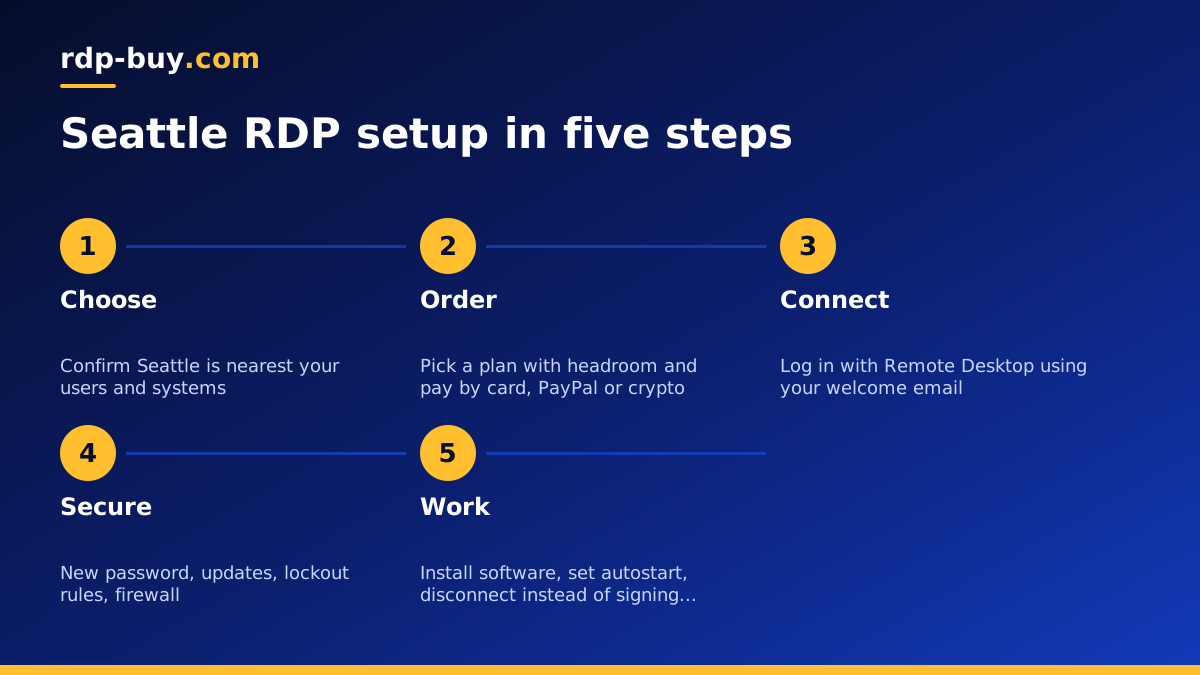
Setting up your Seattle RDP step by step
Your server is ready in minutes after payment. Follow these steps in order before you start using it for real work.
- Connect: use Remote Desktop Connection on Windows or the Windows App on Mac with the IP address and login from your welcome email. Full instructions are in how to connect to your RDP server.
- Secure the account: change the administrator password to a long, unique one and store it in a password manager.
- Update Windows: install all updates and set active hours so restarts happen when you are not working.
- Install software: add the programs you need and remove anything you will not use.
- Autostart tools: set important programs to launch at sign in so they return after a restart.
- Harden access: follow our RDP security best practices, such as account lockout rules and firewall limits.
- Back up: copy important files to a location outside the server on a regular schedule.
Using a Seattle RDP every day
Once the server is set up, treat it like a work computer that never switches off. Disconnect rather than sign out when you want programs to keep running. Sign out only when you want to close everything. Check Windows Update every week or so, and restart the server deliberately at a quiet time rather than letting it pick a moment for you.
Moving files is easy too. You can copy and paste through the Remote Desktop session, share a local drive, or use a cloud storage app on the server. Our guide to RDP file transfer covers each method.
If you later find you need Linux tools as well, a Linux VPS can sit alongside your RDP. The guide on RDP vs VPS explains when each is the better tool.
Paying for an RDP in Seattle
You can pay by card, PayPal or crypto. If you prefer not to use a bank card, see buy RDP with PayPal or buy RDP with crypto. Billing is monthly, half-yearly or yearly, so you can test first and commit later.
How to choose your Seattle RDP plan
Confirm that Seattle is the closest city to your users or the systems your desktop works with. Then choose a plan sized for the programs and users you expect, with a little room to grow, and start on monthly billing if you want to test.
Every plan includes full admin access, a dedicated IPv4 address, the Windows licence, 24/7 support and setup in minutes, with 33 locations to choose from. When you are ready, select Seattle on our USA RDP page, or compare every Windows plan on buy RDP.
